Recording And Editing Conference Talks
The recording for my SeaGL 2026 talk about The Small Web has been uploaded here. Someday Soon™ I will create a separate RSS feed just for talks and I'll announce on the main blog when this happens.
I love public speaking. You can see recordings of talks that I have given here. I want to constantly improve my skill, and this requires watching videos of myself doing it (this helps with most skills in fact). Sometimes conferences record presentations and upload them to the Internet. Sometimes there are technical or organizational difficulties that prevent this from happening. I've been bitten by this before, and I've been on the biting end of this type of thing as well. For this reason, I record, edit, and upload all of my own presentations. I've tried to do this from the beginning of my conference speaking career (2017) but have gotten much better at it since 2025. I've developed a good workflow for doing this. This blogpost details this workflow at its current state (end of 2026).
Recording
Whenever I give a talk, there are actually two recordings:
- A tripod camera to catch video and audio of myself
- A screen recording to catch video of the slides and a secondary audio of myself
Then I later combine these recordings into one, edit them down, arrange them in a template, render the final video, and upload it ot to the Internet.
Camera & Tripod
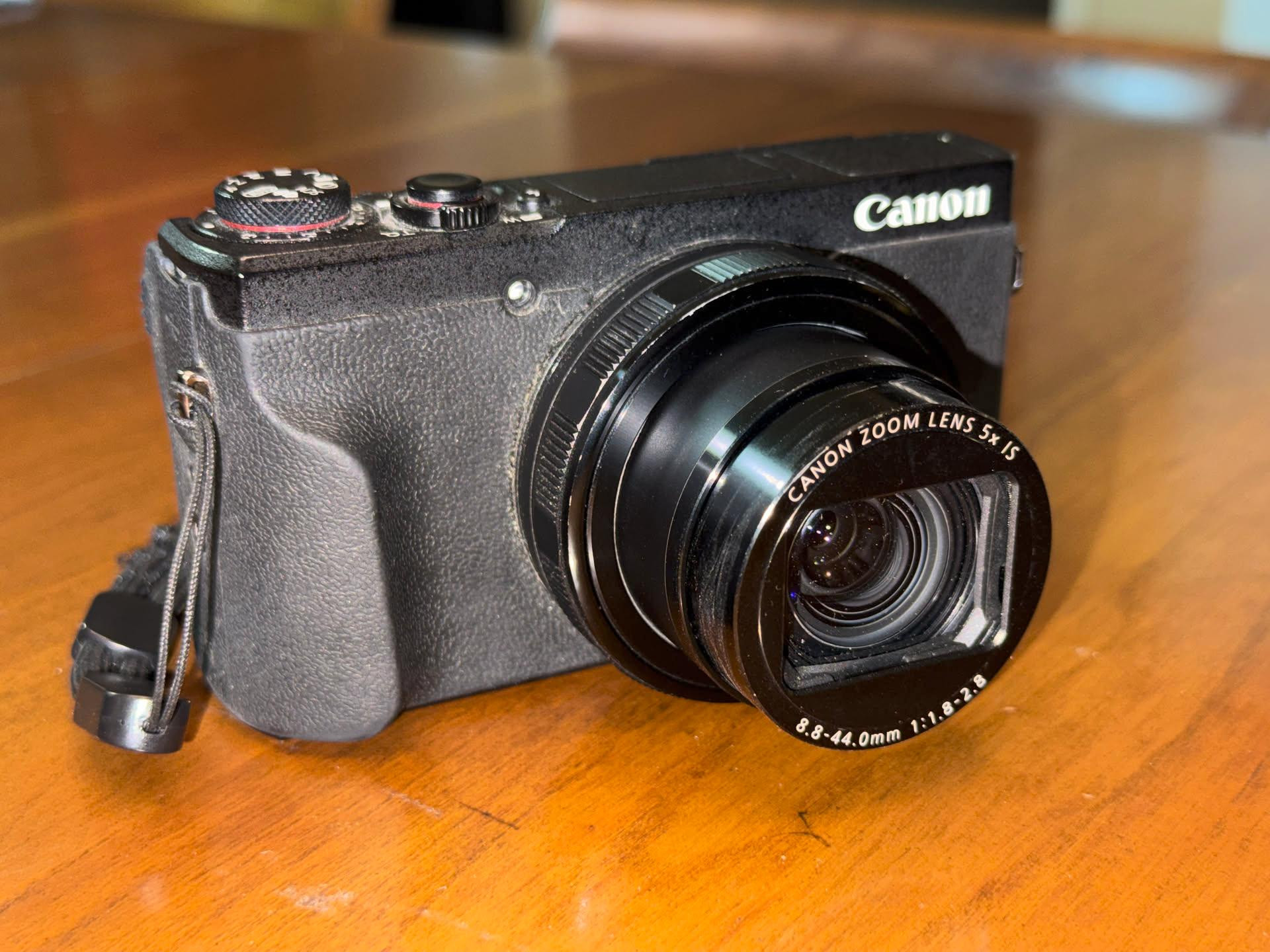
The camera that I use is a "Canon PowerShot G5 X Mark II", a compact little point-and-shoot camera from 2019. It is a great little camera and I love it. I've taken it all over the world and shot my best photos with it. Right now it has a hair in the lens that is visible in a lot of shots that I take, so I have stopped using it for anything other than conference recordings. This is a common problem with the PowerShot line of cameras, and there are a lot of videos and detailed writeups online about how to fix this problem on a G7 X Mark III, which is a slightly different model of camera. I've tried following these instructions with my camera, but my lens shroud doesn't seem to be interested in coming off the way that it does on the other model.
For recording conference talks, the camera serves well enough. The piece of hair is (usually) in the corner of the frame, and I tend to be in the middle, so there's no overlap since I can crop the hair out of the shot during the final editing process. The main deficiency with using this camera to record the talk is that it has a maximum recording time of 29 minutes and 59 seconds in 1080p mode (which is what I shoot in). If a conference talk is longer than this (which has happened before), then the video will cut out and the camera needs to be restarted, which necessitates starting the recording again. If you watch a recording of mine and wonder why I disappear for a split second part of the way through, that's why. The video stopped recording and was restarted immediately. This is a stupid limitation for the camera to have in my opinion, but despite my best efforts I have not found a way to work around it.
I don't set up or operate the camera myself, my wife handles that. This makes things so much easier because I don't have to:
- frame the shot
- start the recording
- restart the recording at the 30 minute mark
She sits in the front row of every talk that I give and helps me out so much 💖. If I ever have to do a talk without her there in the future, I will probably have to conscript a member of the audience.
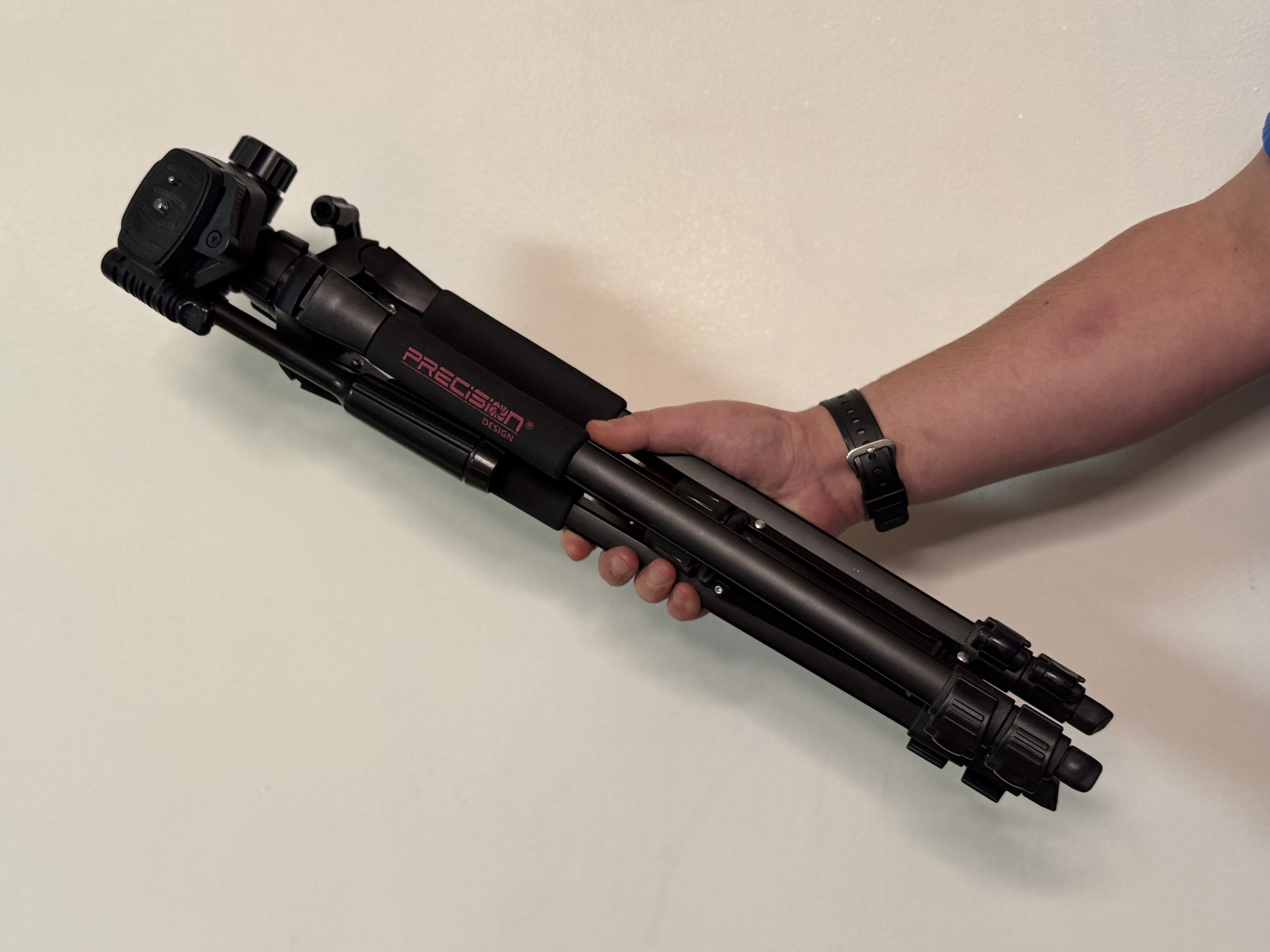
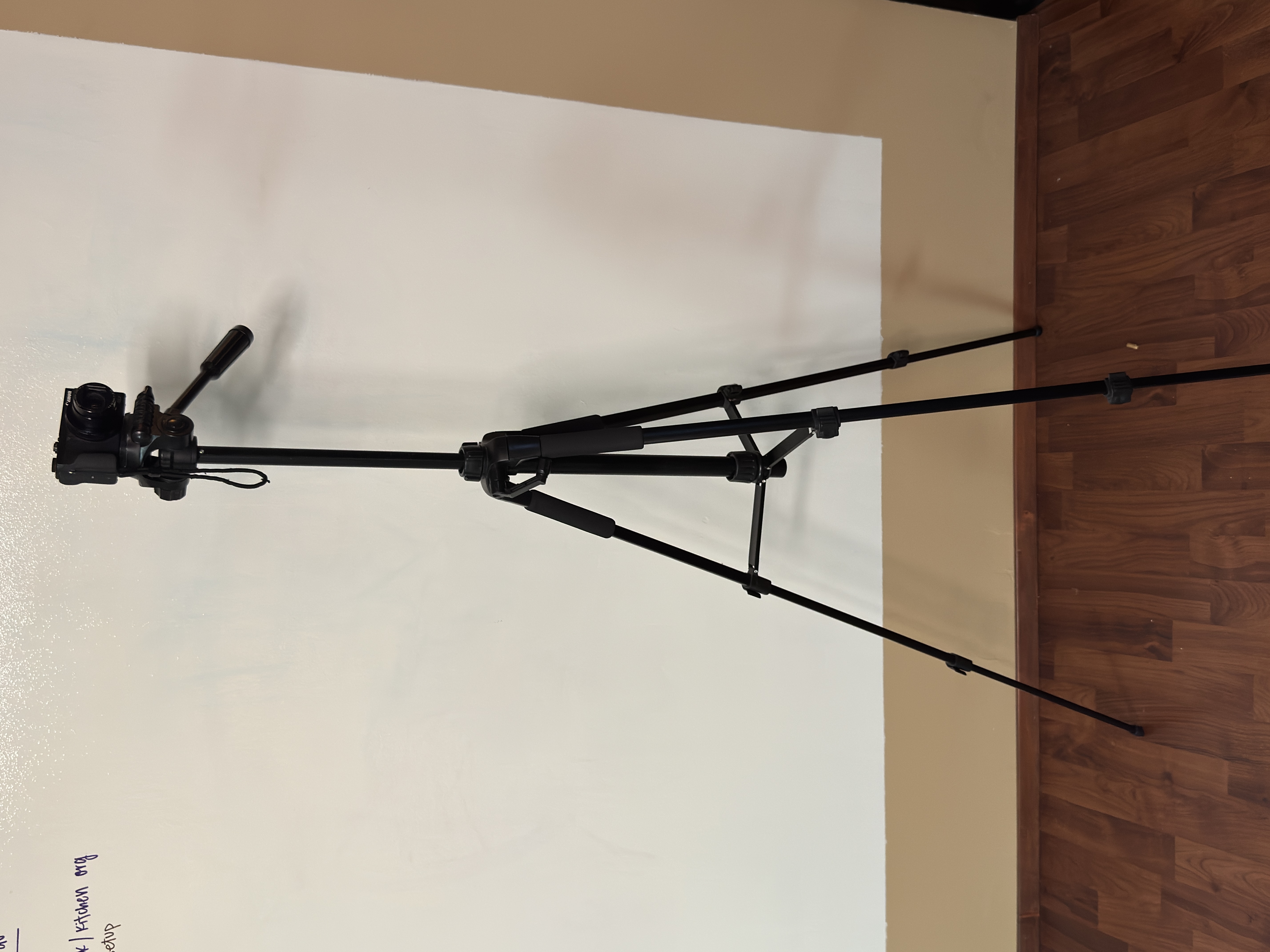
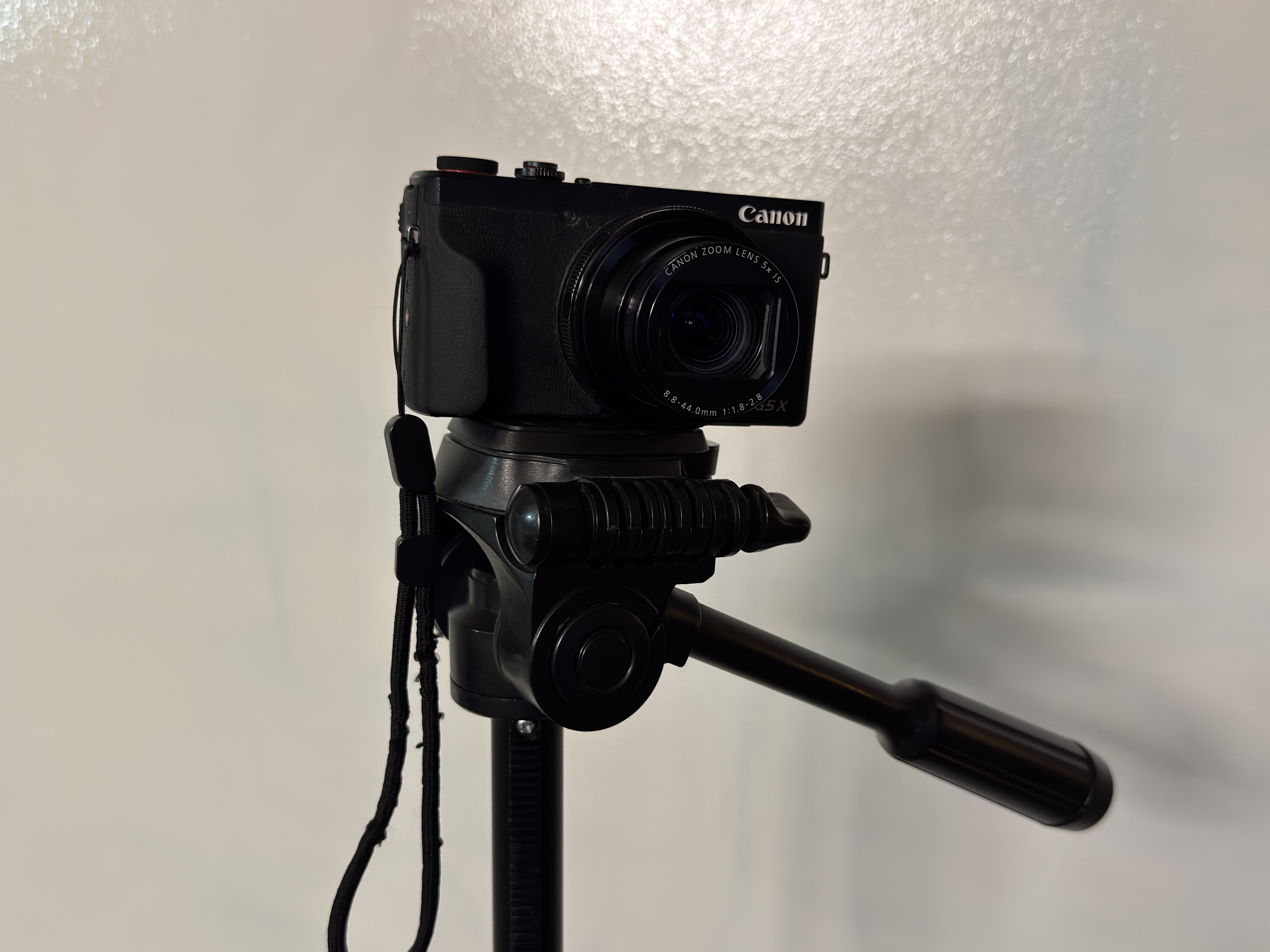
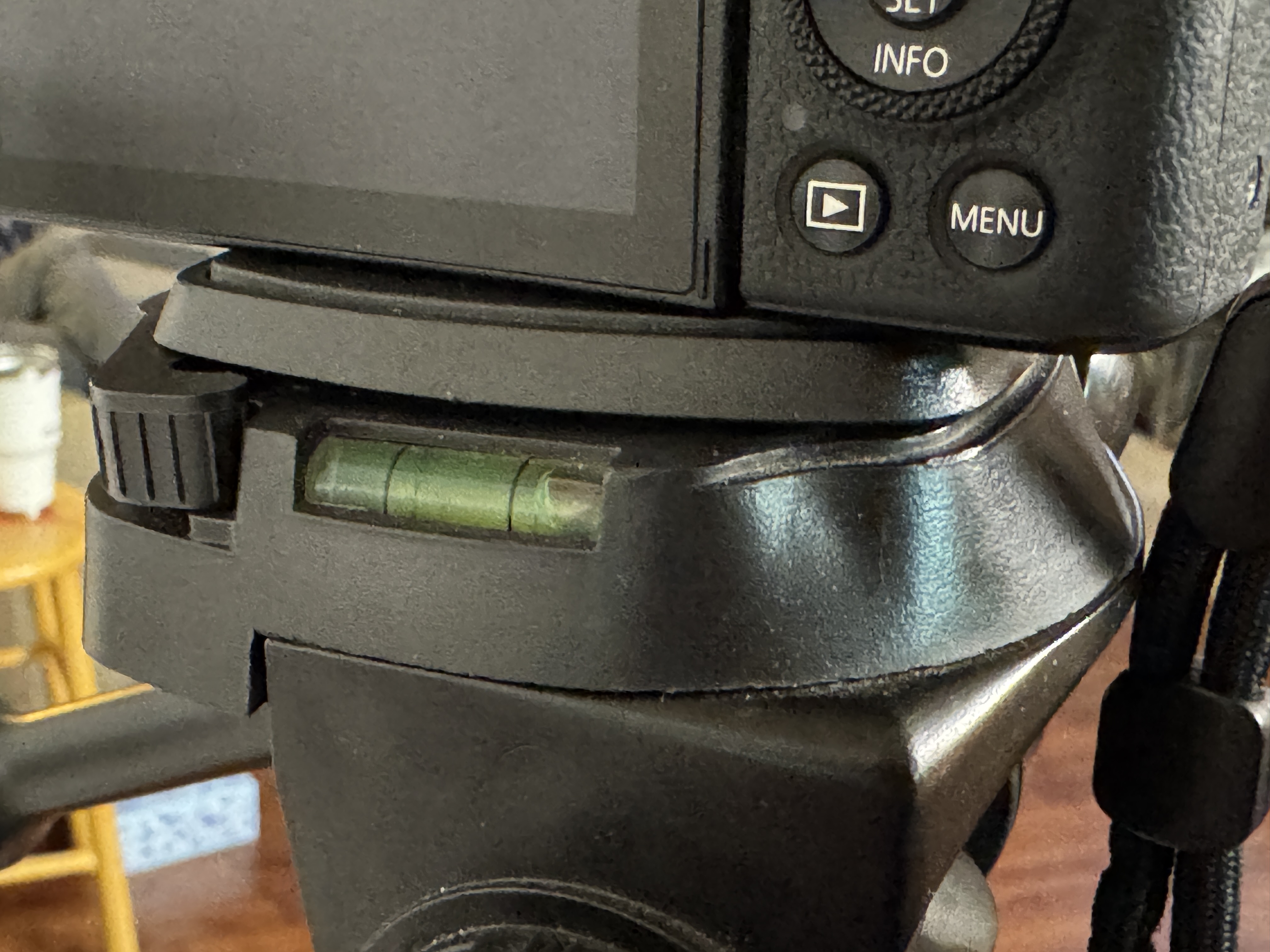
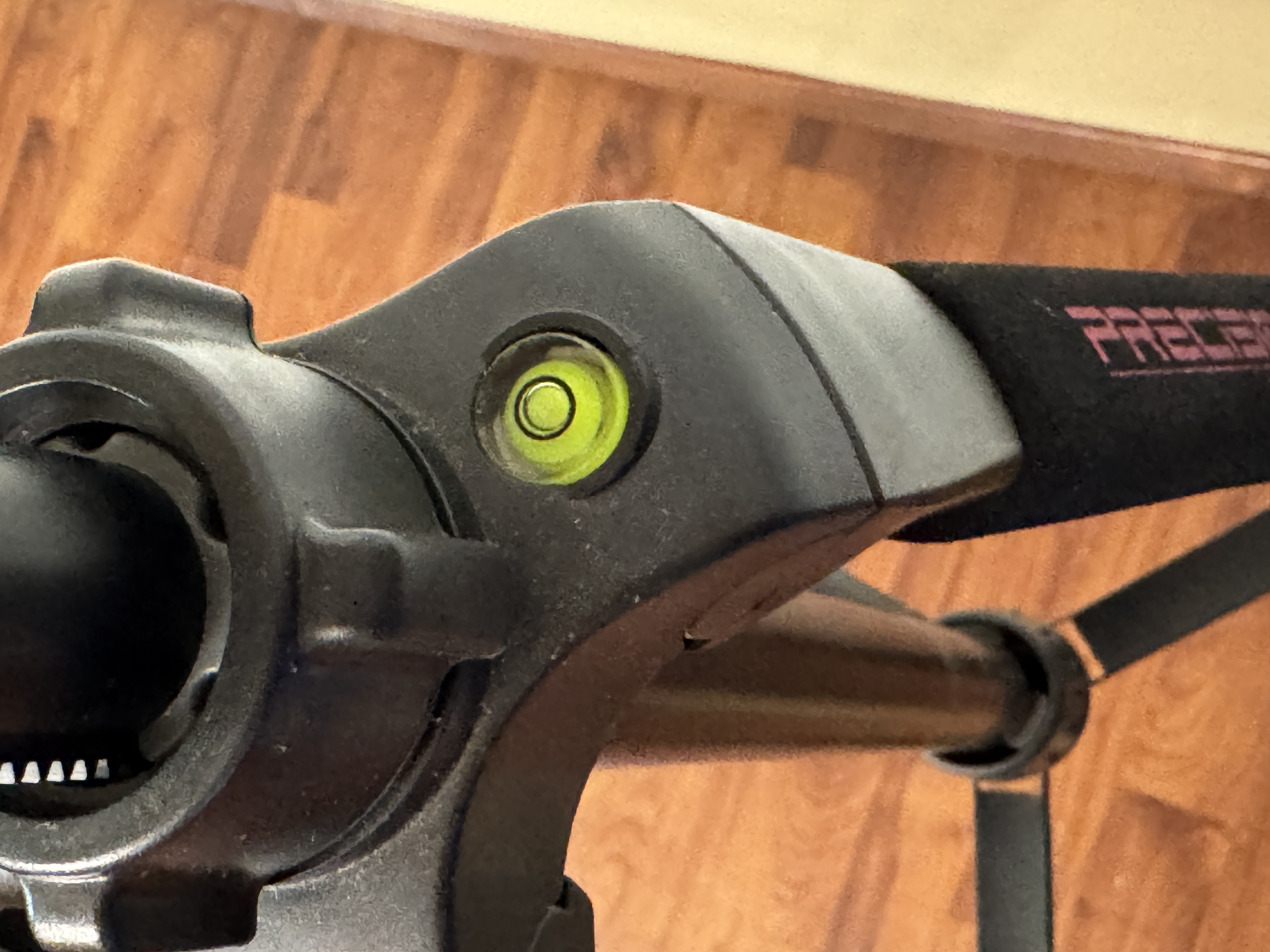
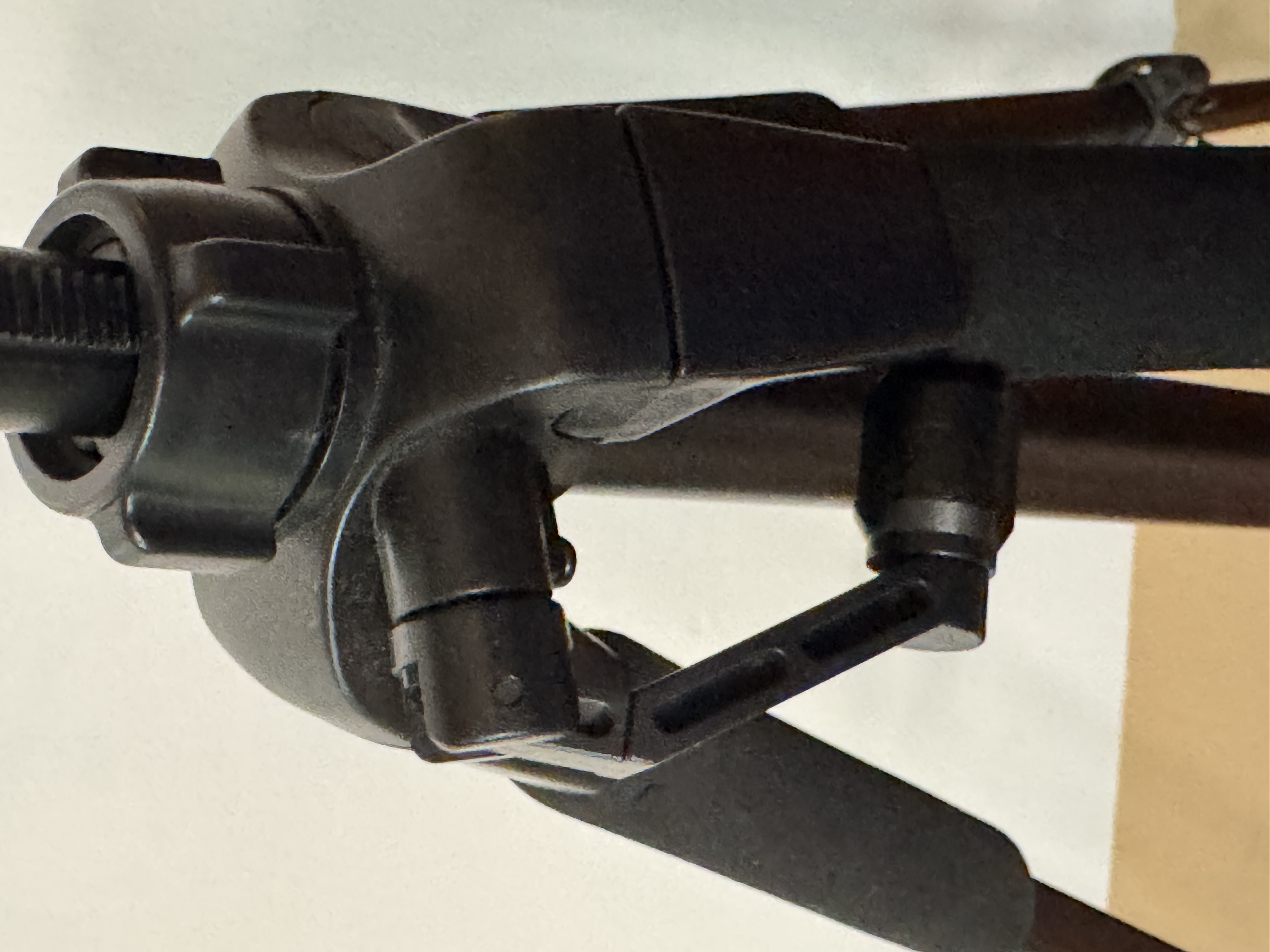
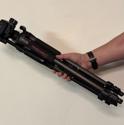
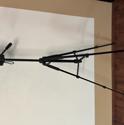
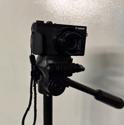
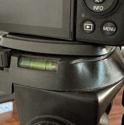
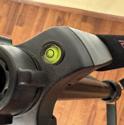
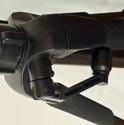
Instead of just holding the camera, she uses a tripod. The tripod compresses to be quite small, which makes it more bearable to carry around in a backpack's water-bottle holder at a conference for a whole day. This keeps the shot stable and consistent. It also makes her job a bit easier. The exact tripod model is a "Precision Design PD-58PVTR". It has all sorts of bells and whistles that I don't think are totally necessary for this usecase, but it's the tripod that we have. It can get quite tall, about 5'1". This is way taller than it reasonably needs to be. In fact having it at its full height would probably obstruct the view of some audience members.
The camera's microphone leaves a lot to be desired. It captures a lot of ambient room sound and it doesn't always catch what I'm saying. The G5 X is known for its lackluster microphone performance. Of the two (G5 X vs G7 X), this one was made more for still photography and the G7 was targeted more towards video people. I really just use the microphone to sync up the two different recordings. I always clap at the beginning of a talk and at the start of any break in the recording, so I am able to use these audio spikes to sync up the two different recordings. I'll detail this more further down.
The camera's main purpose is to get a recording of my face while I give the talk. This may seem kind of vain, but I hate watching talk recordings where I can't see the presenter. Presentation is an artform and I feel like missing out on the presenter a reduction of the art.
Laptop & Software
My laptop computer, a Framework 13 (AMD 7040) is the computer that I use to give all of my presentations. I like to use my own computer because I know that I can rely on it to not mess anything up. It's the same computer that I use to prepare the slides and to practice any demos.
I (begrudgingly) use LibreOffice Impress to create and display the slides. It's really slow and clunky to make slides with, but it has a really great presenter-view that shows me the upcoming slide and a timer so that I can see how long I've been going for.
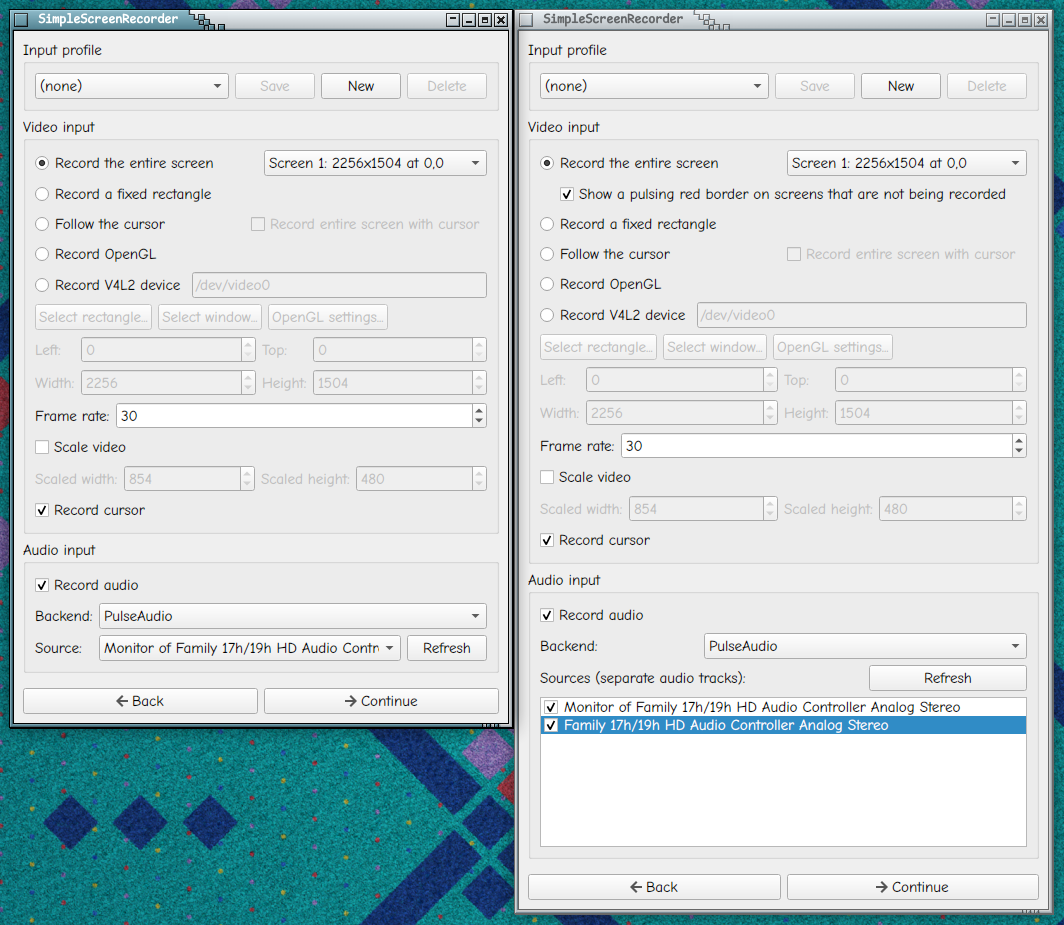
To actually record my screen (and microphone audio), I use Simple Screen Recorder. This is a piece of software that is present in most Linux distros default repository, and it works great on Xubuntu 24.04, which is what I use at the time of writing this post. I've used this software for various purposes for years and I love it. SSR's special call to fame is that it perfectly syncs the audio and video. This software did leave me wanting slightly. I really wanted two extra features:
- Multi-stream audio recording. This would let me record both my microphone and speakers as separate audio tracks and manipulate them separately later during editing.
- Some indicator that recording is happening while in fullscreen. There is a taskbar icon that turns red when SSR is recording, but with Impress in fullscreen mode, I can't see my taskbar.
I took a look at the software's source code (since it is Free Software licensed under the GPLv3). I thought that perhaps I could add these features, but to my dismay the software is written in C++. I don't know C++ and, more importantly, I don't want to learn it. The software doesn't see many updates. There has been an open issue to add the multi-stream audio recording for half a decade, but as far as I can tell nobody has requested the fullscreen indicator before. I tried to reach out to Maarten, the author, offering to pay or bribe him to add these features. Sadly, he didn't respond to my email. Maybe I wound up in his spam folder, but I have no way of knowing for sure.
I decided to try forcing a robot to make these changes for me. The common complaint about robot-generated code is unmaintainable and un-understandable. I am already not willing (or able) to maintain this software, and I already do not understand how it works. The other common complaint that I hear is that it infringes on intellectual property, but I don't believe in intellectual property so that doesn't impact my decision-making. The robot was able to one-shot these changes for me and I have successfully used this custom forked version of SSR to record my most recent presentation and for other needs since then as well.
If you would like to download and use this custom, unmaintainable, un-understandable, copyright-infringing, water-annihilating fork of SSR, you can download the two files needed for it here:
These two are (allegedly) customized just for Ubuntu 24.04. The script will (allegedly) download the source code for the version of SSR that is included on Ubuntu 24.04, patch it with the patch file, compile it, and then install it. The command to do all of this is:
./build-ssr-ubuntu-24.04.sh --install
This probably only works on Ubuntu 24.04. Sorry. If you read this blogpost and get upset about the robot usage for this utility, then I invite you to make the changes yourself in a sustainable way and get your changes merged upstream. If you do this, I will give you $200 USD and write a blogpost about how cool you are. This is probably not enough money to entice anyone to actually do this. The robot did it for free.
Microphone
The microphone on my camera sucks and the microphone built into my Framework 13 leaves a lot to be desired. In the past I've been able to pull audio out of an official livestream and mix it into my own recording, but I can't always rely on that being available. For this reason, I purchased a lapel microphone. It's a "DJI Mic Mini 2" that I bought at a store in Canada during FOSSY 2026. I think that this microphone has already been discontinued, because the official link that I can find on a web search just returns a 404 now. That's a bummer because it's a really great microphone.
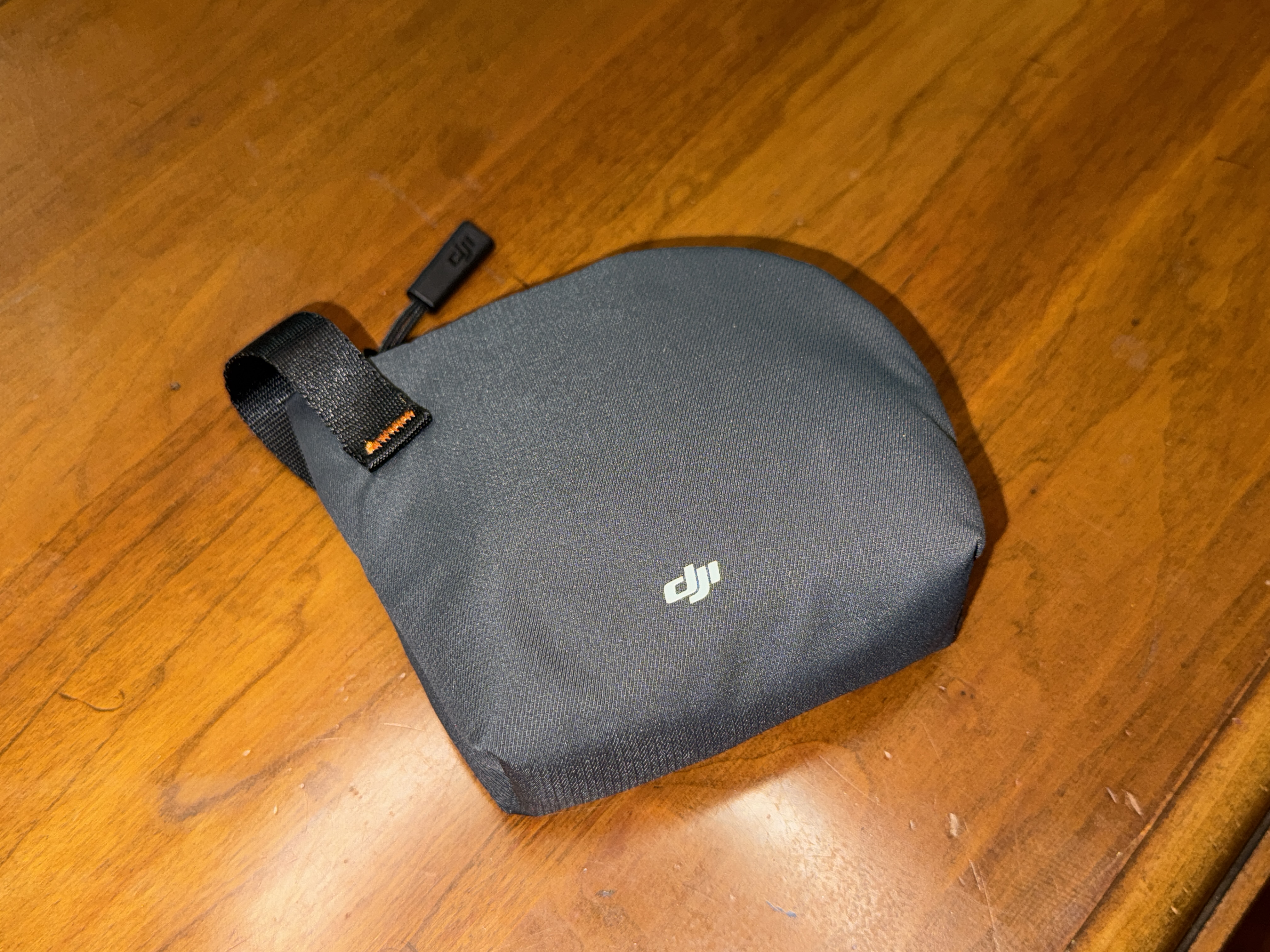
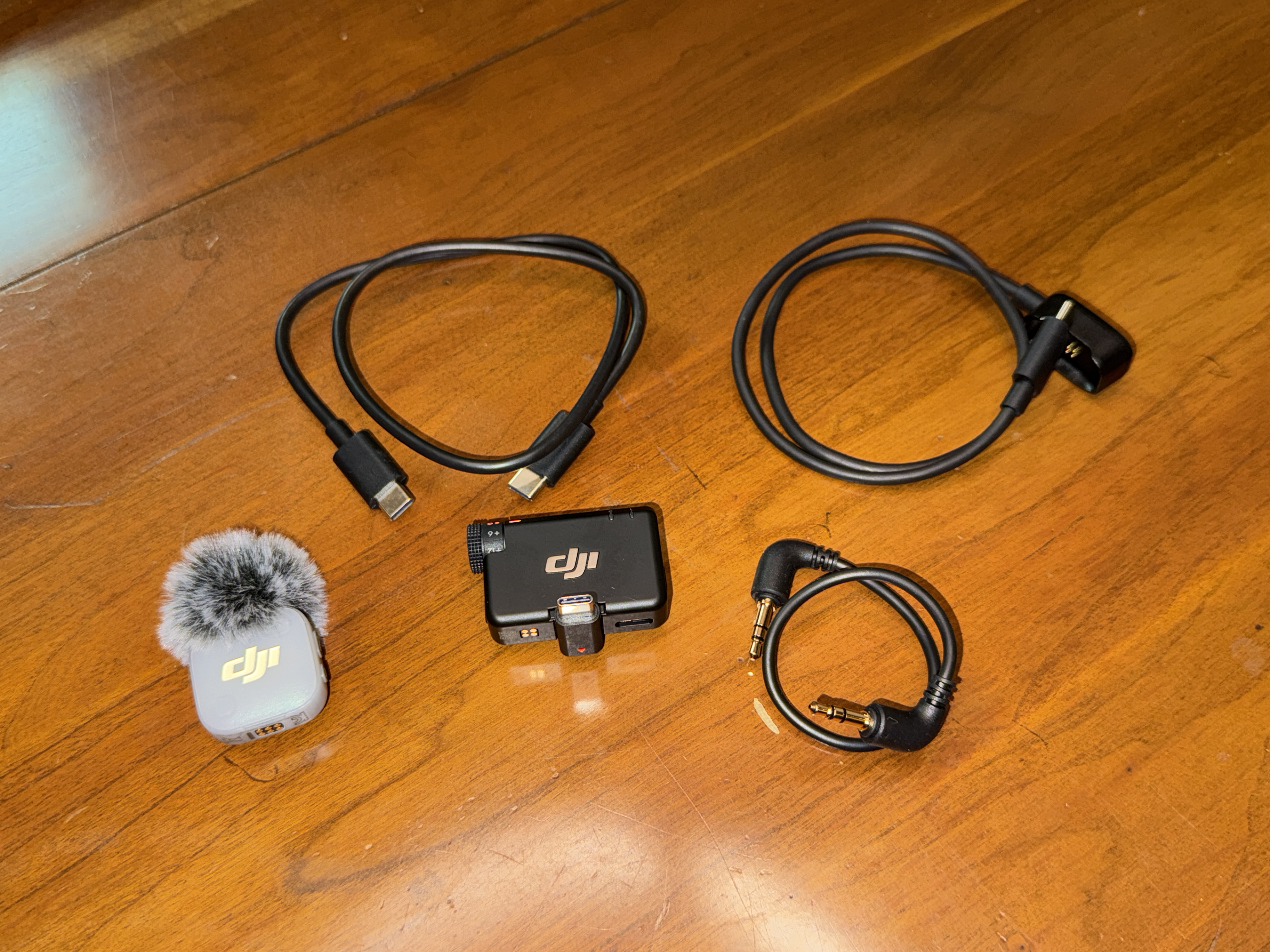
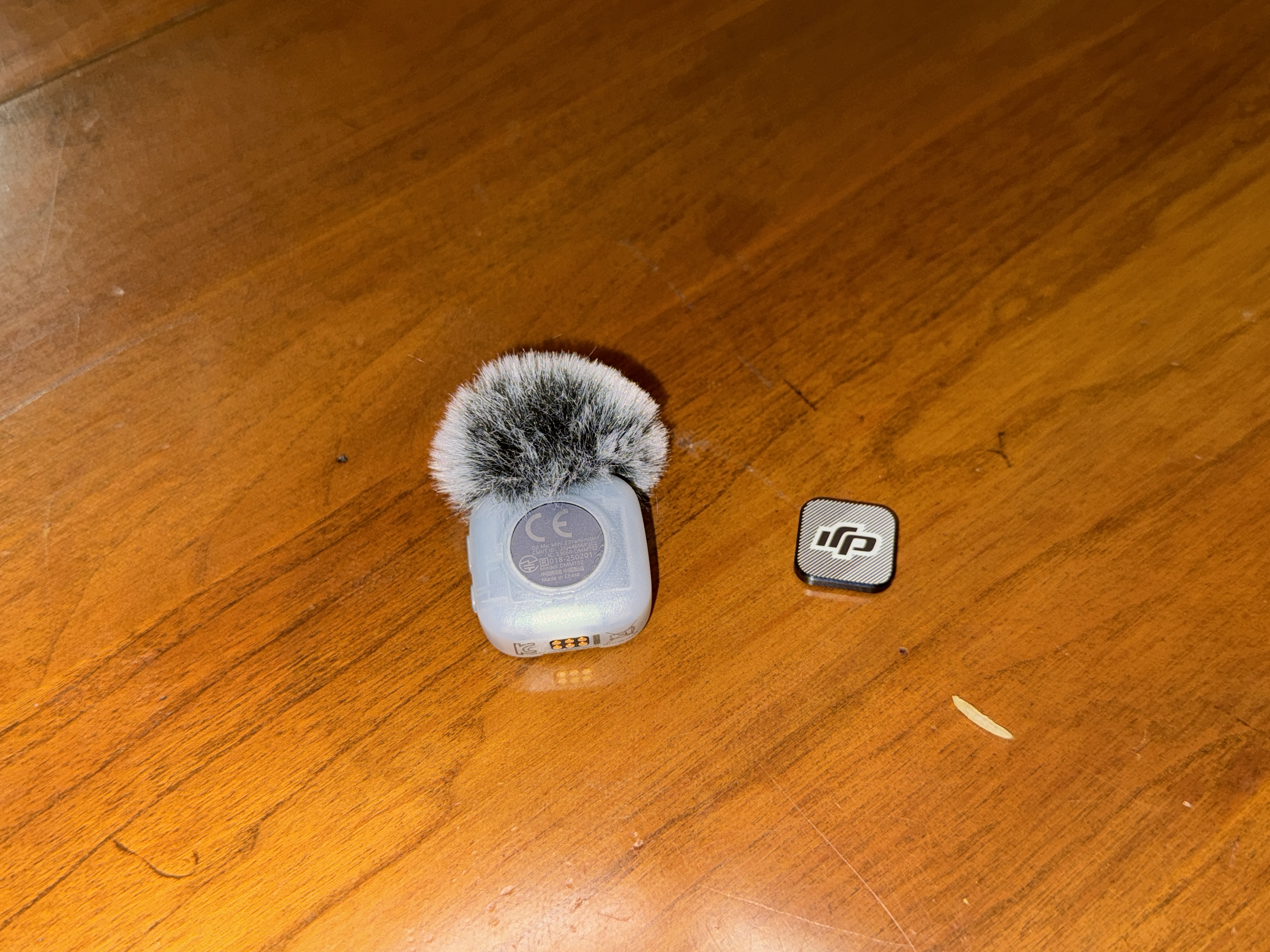
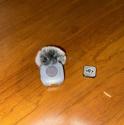
The microphone requires a standalone receiver dongle that you need to use. You can't just bluetooth it straight to your computer (as far as I can tell). It also includes all the little cables that you could want for charging and connectivity. It's small and produces really high quality audio. It even includes the little poofy thing so that I can look extra pretentious and a carrying bag to keep everything in one place. The noise cancelling mode on this microphone makes audio from an echoey room sound so good that it could be an audiobook recording. Honestly I think that it sounds too clean and so I don't turn that mode on anymore. To attach the microphone to your shirt, there's just a little magnet.
The only thing that I don't like about this microphone is the branding. I don't care to be an advertisement for DJI. Maybe someday I'll care about this enough to do something about it and block out the logo.
Clicker
I've written about clickers at length before, but the quick and dirty version is that I use a D01 Pro TikTok Scrolling Ring (which is a real thing that exists) to change slides. This keeps my hands relatively free. I remap the keys with Input Remapper. Additional details for those interested can be found in the linked blogpost.
Editing
After I finish a presentation, I'm left with 2 or 3 different recording files that need to be aligned, cut down, laid out, and rendered. One recording is my laptop screen and high-quality audio. The next one or two files are from the camera (depending on how long the talk went on for).
The piece of software that I do all of this in is called Blender. Most people know this as a 3D modelling tool, but it actually has a really great video editor built in.
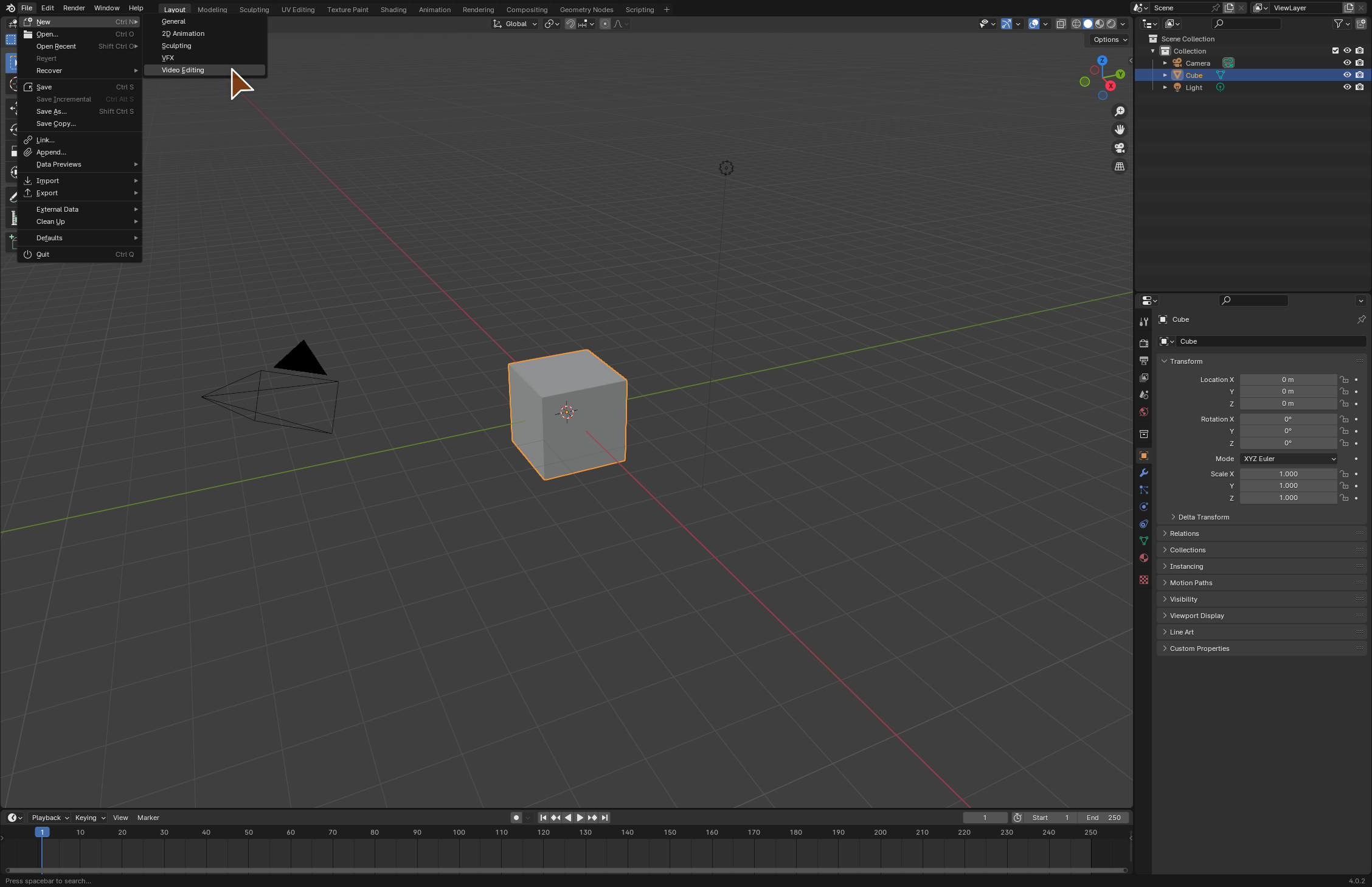
To create a new video editing project in Blender, you just go to File -> New -> Video Editing. This will open the editor in your current directory:
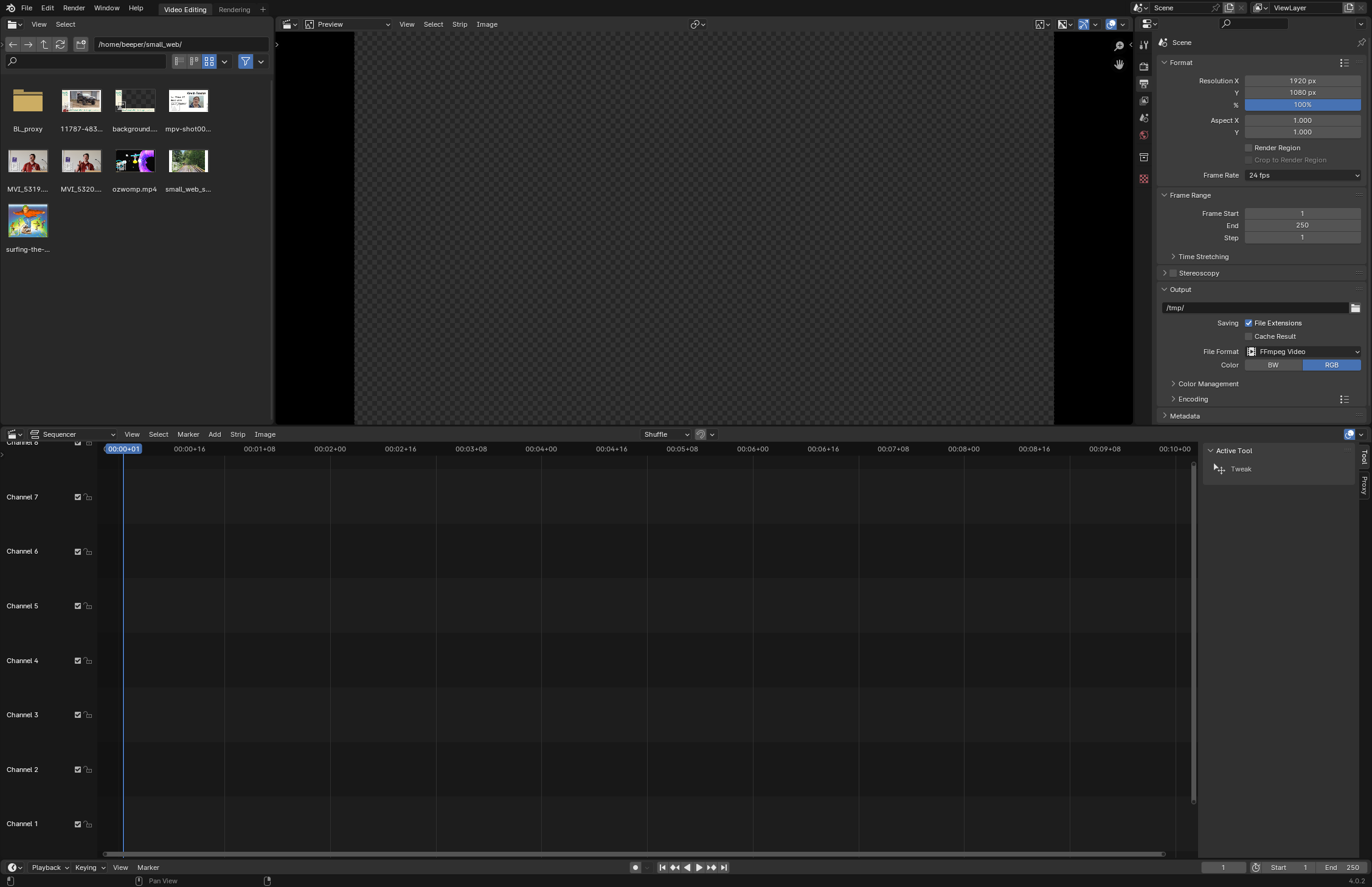
Once I've got the editor open in the directory with all my files, I drag the recordings into the bottom "sequencer" panel and click the "Display Waveform" box for each audio track. This will allow me to see where the clap sound is in each recording. If there are multiple camera recordings, then I'll need to line up the second set of claps as well. Generally the claps are pretty easy to find. If you have trouble finding the claps visually in a long audio recording, you can mute one track by hitting the H key (which is an unintuitive letter choice) and then listen to the other to see what part of the talk you're currently located at. Then use context clues and your brain to get closer to the clap.
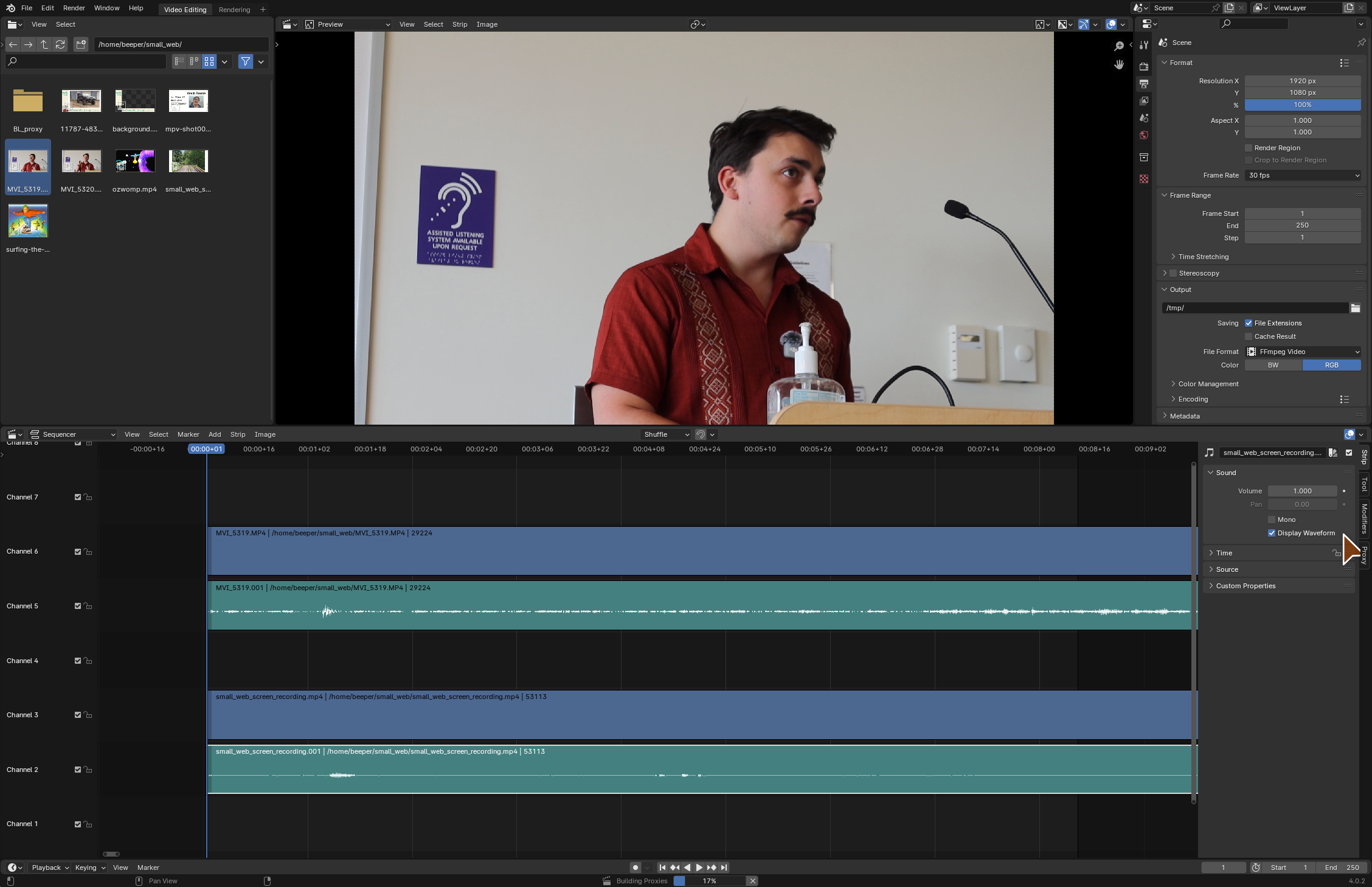
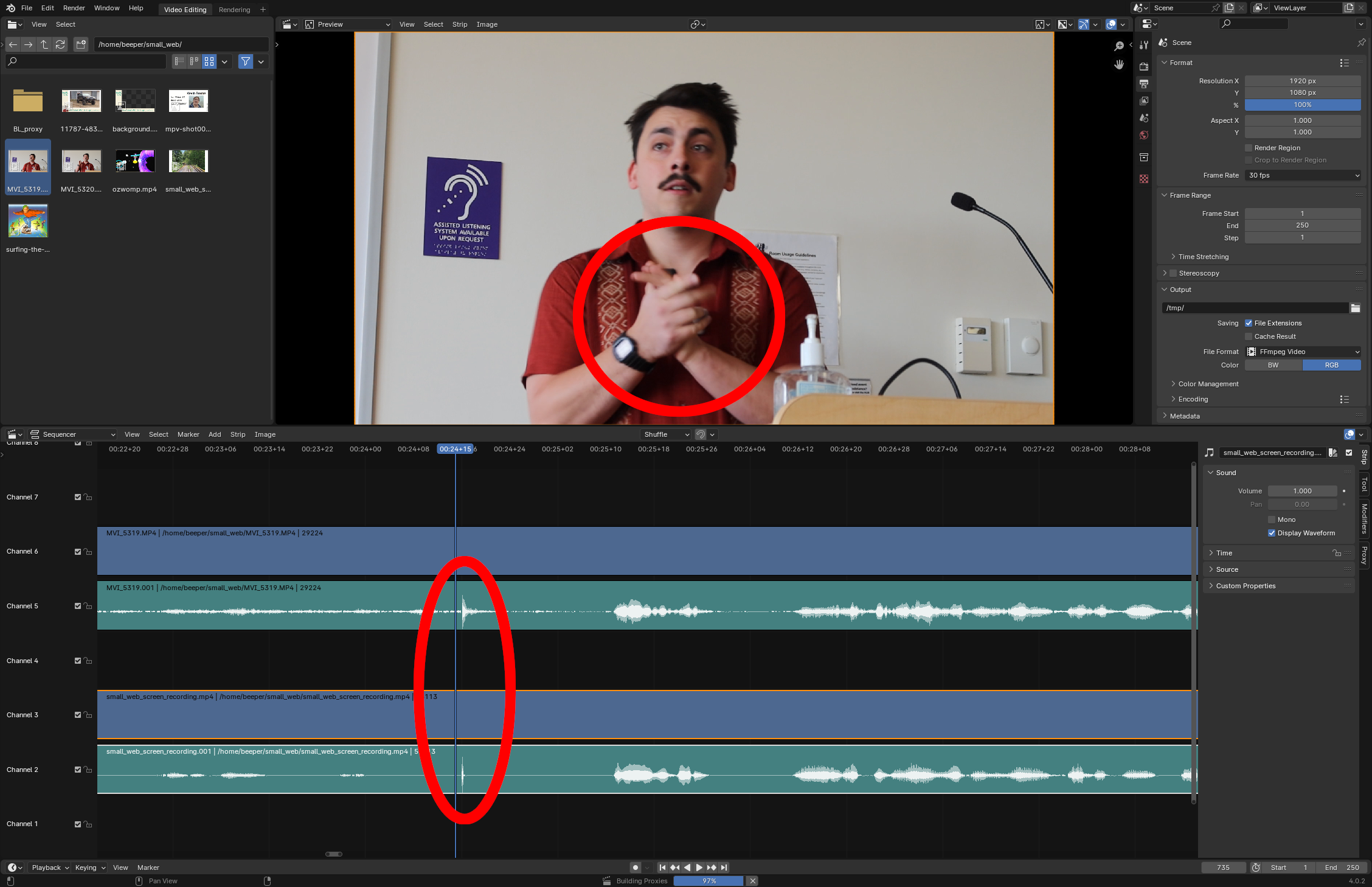
After all of the tracks are synced up and the bad audio track is deleted, I fiddle around with the video.
I combine any camera videos into one meta-strip so that I can crop them jointly. The reason that I crop down the video is because of the aforementioned hair in my camera lens and the fact that I only take up a portion of the frame. To make the meta-strip, Shift-click the clips that you want to combine and then hit Ctrl+G.
After that, I use Blender's built-in functions for video clips to crop and scale both videos and move ("transform") them to where I want them in the final output. It's easy to spend a lot of time doing this to make things just right, so I try not to worry about it too much. As long as I'm mostly in-frame for most of the video and the slides are big enough to see then I'm fine with it. Doing this will leave a checkerboard background in areas to show you that there's nothing there.
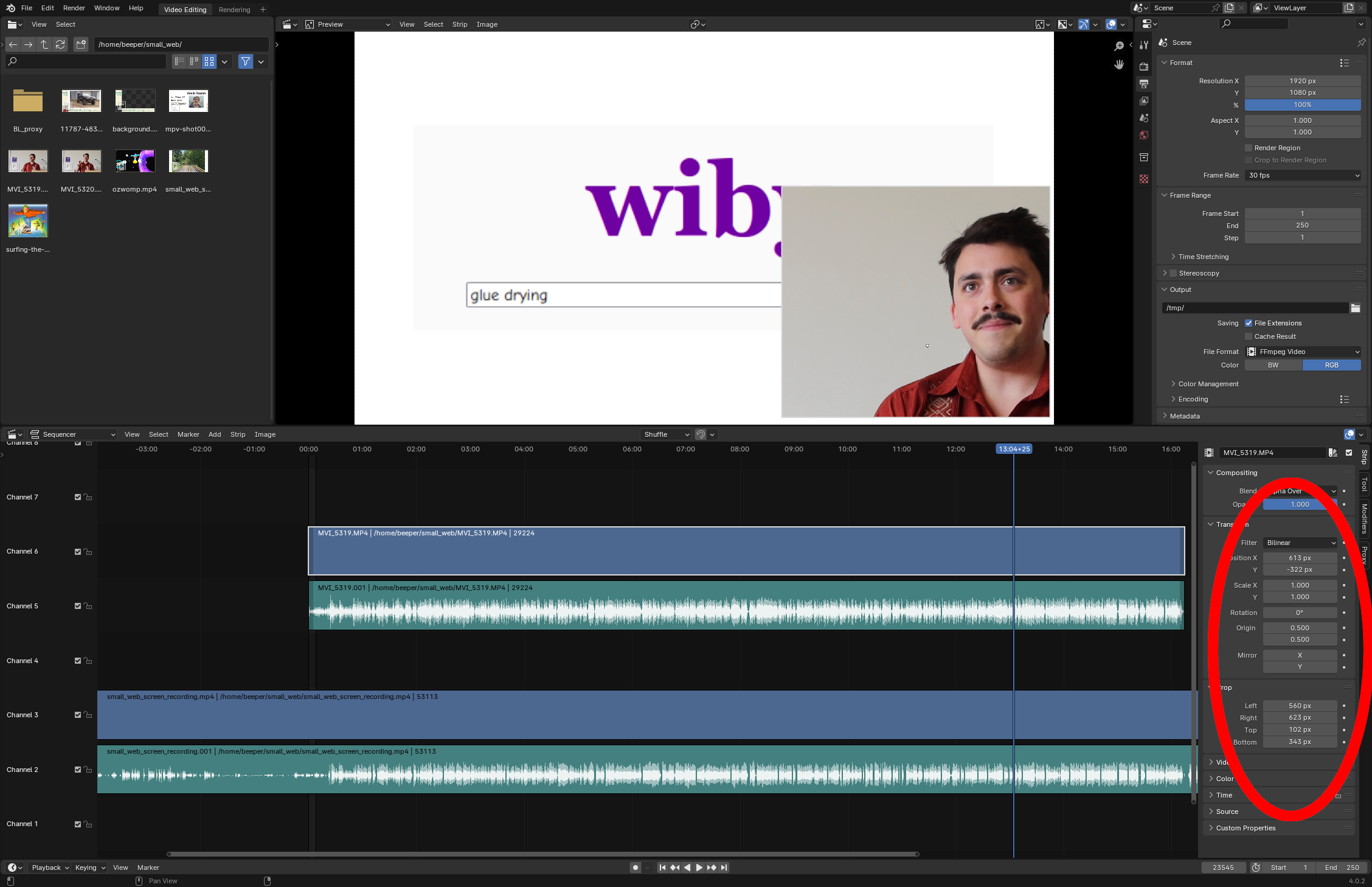
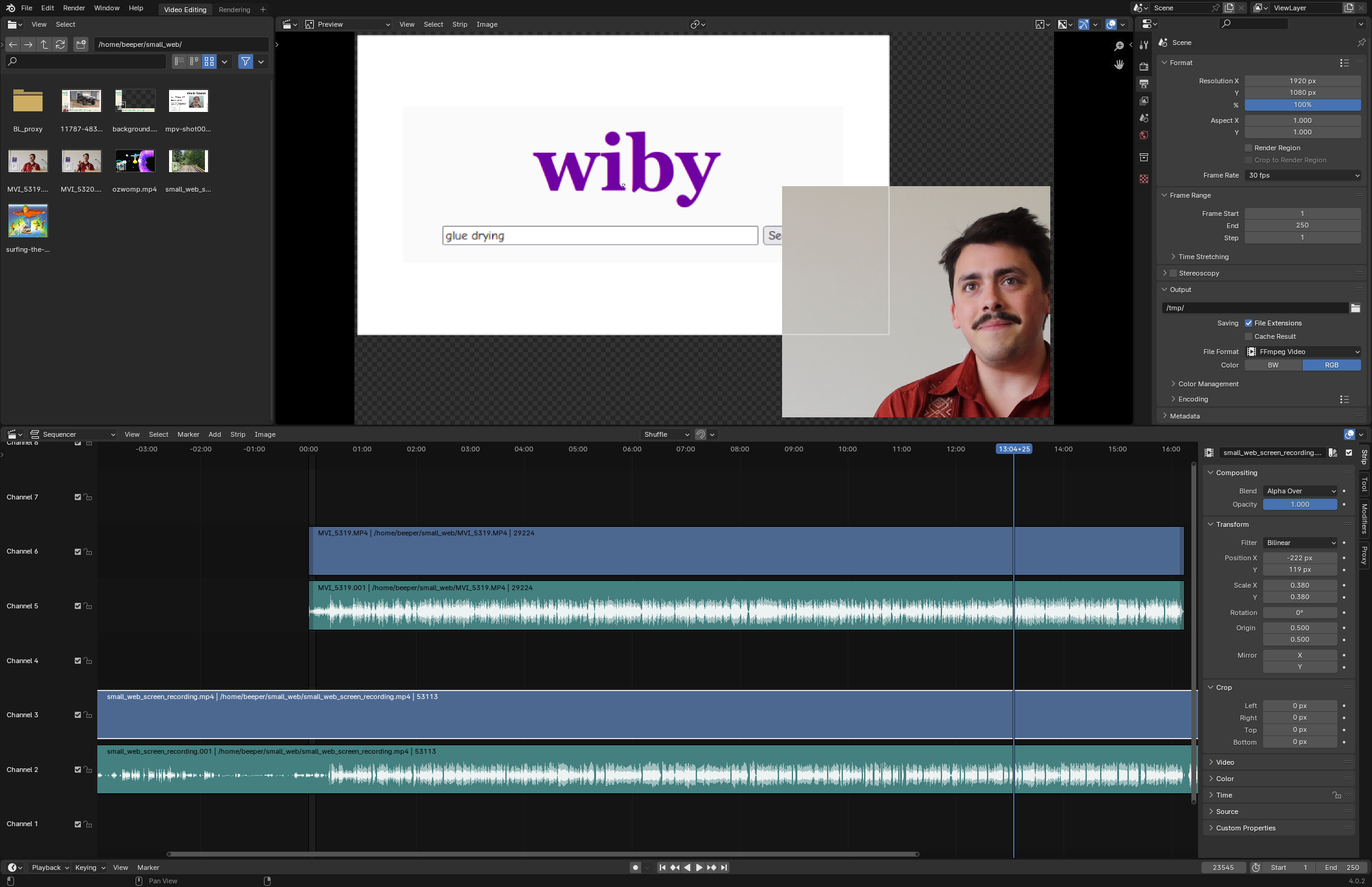
From this point it's just a matter of getting things positioned where you want them and choosing your start and end points. I typically cut out any initial prep that got caught on video and any Q&A at the end of the presentation. If you're trying to preview your video in the editor, you'll only be able to play a small segment at first. There are text fields in the bottom right of the window that let you choose the start and end frames, creating a window of time from the sequencer that should be rendered. This render window defaults to being unusably small.
Once I've got things clipped, cropped, scaled, and moved where I want them, I just need a background image to fill in the blank spots. I'm not a great graphic designer, but I know where all the buttons are in Inkscape, so I make this image there and just add it as a long stream in Blender. There are a lot of helpful but esoteric functions in Blender that make this easy to accomplish:
- Page-Up and Page-Down buttons move your scroller to the previous/next clip start/end.
- You can click on the handle at the edge of a clip to drag its duration around.
- Shift+S snaps your current selection (including a duration handle) to the current scroller point.
As a result, the workflow for spanning an image across multiple clips is generally something like:
- Click on the left-most handle of the image clip
- Page-up (times a bunch)
- Shift+S
- Click on the right-most handle of the image clip
- Page-down (times a bunch)
- Shift+S
Eventually I wind up with an edit that I'm pretty happy with. It's not perfect, but perfect is the enemy of done. You need to fiddle with the output render settings in the top-right Properties panel (Shift+F7 if you've lost it) because the default settings create an output that is unusable, at least for me.
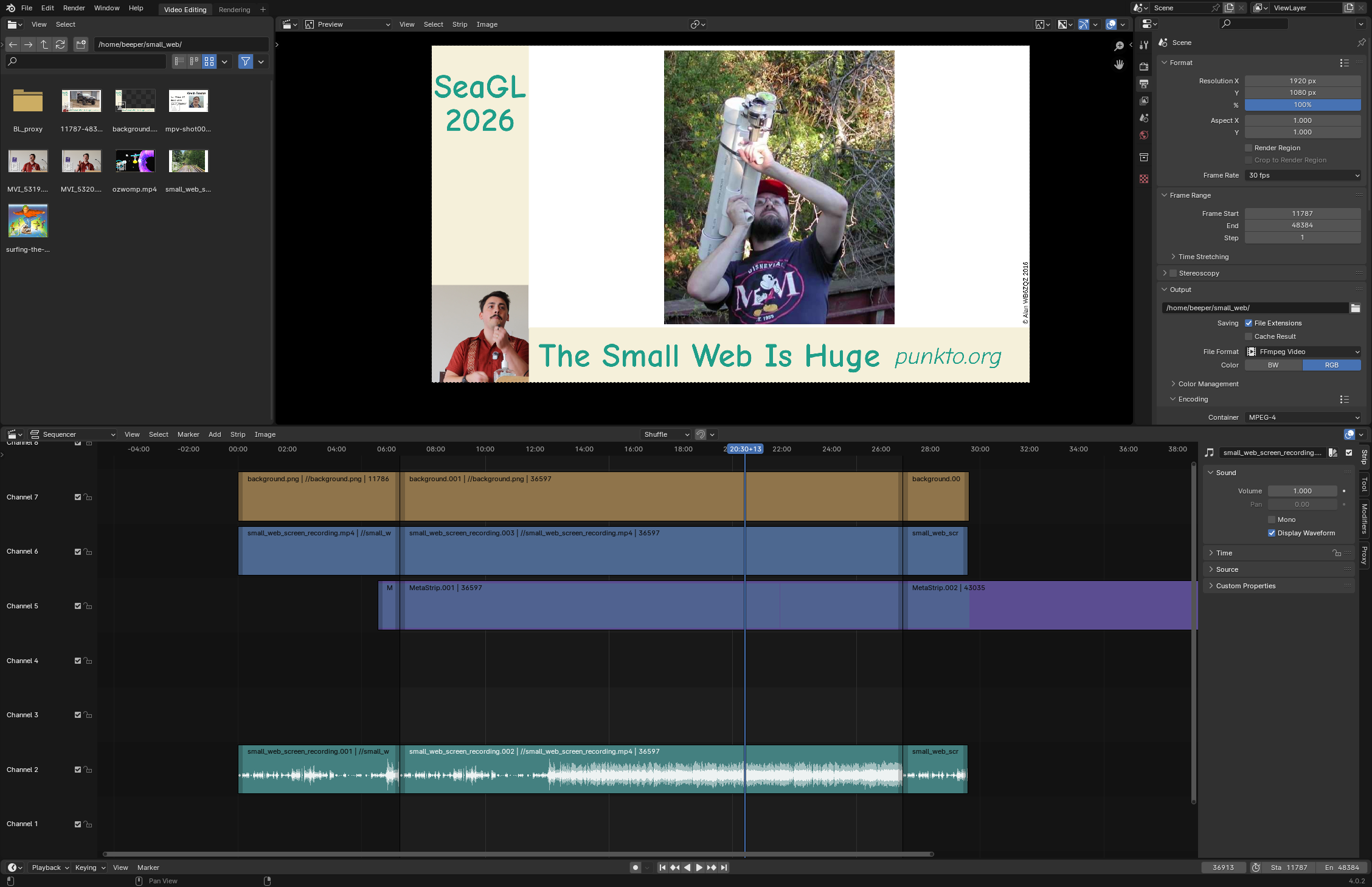
Then I go to Render -> Render Animation and let it sit. On my non-GPU-having laptop computer, it takes about 2 hours to render a 30 minute video. During this time the fan spins up and the computer is not usable for much else. I normally accomplish this part at the hotel the night after I give a conference talk, so I can just not use the computer for a little bit.
Uploading
I upload these recordings (which I label as "Director's Cut") to the Internet Archive in the same page that I upload my slides to. There are a couple of reasons for this:
- The Internet Archive never gives up your files (or you)
- The Internet Archive never lets you down
- The Internet Archive never runs around and hurts you
I understand that using IA as a primary publishing platform is a little bit unorthodox, but that's part of the appeal. IA lets you choose your own path when you create a page. For this reason, I've got some really great page URLs for my talks. I am able to get baller URLs without any fuss because people don't really upload to IA. I don't get to have analytics or a nice little "view" count or subscribers or likes or comments but I don't care about any of that so it's not actually a loss. All the coolest people, the ones that I actually want to talk to, just send me an email anyways. Sometimes people ask me to upload my talks to YouTube or some Fediverse video site. I don't have any interest in doing this, but if you want to do that then knock yourself out.