Using A TikTok Scrolling Ring For Slide Transitions
If you don't want to read the whole post then you can click here to just skip to the solution
I like to give presentations at conferences. You can see a list of my prior engagements along with links to recordings here.
One of the things that (almost) all presentations have is a slideshow. The presenter progresses linearly through slides and talks at the same time. This basic formula is visible at nearly every presentation on every subject in the world.
Humans have been giving slideshows in one form or another since the 1600's, and we have developed a bunch of different tools to progress to the next slide.
Pressing The Spacebar
Your slides are probably being handled by your computer by whatever software you use. Despite its questionable design choices that I think incentivize poor presentation techniques, I use LibreOffice Impress. To be fair, PowerPoint isn't any better (or worse). All presentation software (that I'm aware of) lets you press the spacebar, right arrow key, or left mouse button to advance to the next slide.
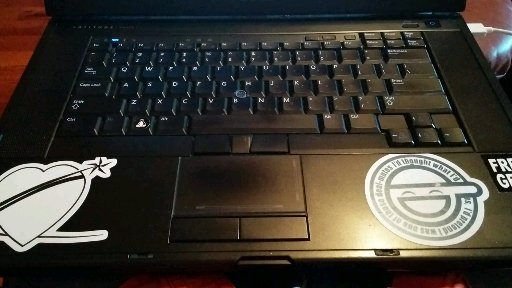
This built-in option that you already have the hardware for (the keyboard on your computer) is a clear choice for a lot of people. You don't have to buy anything extra or figure out how to make anything else work. It's built-in and gets first-class support. Everyone already knows how to use it. However, it has some limitations that I don't care for.
You have to remain glued to the lectern. You can't use the whole stage because you have to be physically present at the machine to click the button. Not only can you not move around, but the audience can't see your body (which is most of you). You become a floating, talking head. This makes your presentations less dynamic and therefore less entertaining. When is the last time that you had a lot of fun sitting in a crowd watching someone stand in one spot for half an hour? Theater performances, music shows, comedians, and strippers are all more dynamic and entertaining when they are moving around. Conference presentations are the same: they are so much better when you can move.
Sometimes a requirement to stick to a podium is enforced by the conference. They don't want you to move because they want you to stay in-frame for a video or in-range for a microphone. This is a real shame, and this limitation makes the whole conference worse by forcing presenters into an inferior performance, but you shouldn't also enforce this limitation on yourself if you can at-all help it.
The only group of people who get on stage and don't move at all that I am aware of are politicians. This is because they have to be able to see a teleprompter. They are dedicated to the art of politicing and don't care enough about the art of speaking to know their lines. US President Obama was famous for not using a teleprompter, and he was a fantastic orater, but he still stuck to the podium. That's where the microphones were. I don't know why politicians refuse to wear a mic. Maybe there's an additional security reason why they aren't allowed to walk around.
Now, you could of course walk around the stage and just make your way back to the lectern when you need to advance to the next slide. Some presenters do this with great success, like Bryan Cantrill. When he's stuck to the lectern he moves off to the side and hits the spacebar when necessary so that the audience can see his whole body. When the camera guy is willing to track his movements, he walks around the whole stage and returns to press the spacebar. This style works for him in large part because he spends so much time on each slide.
In my presentations, I rapid-fire slides as a method to keep the audience from falling asleep or checking their phones. As a result of my presentation style, walking around and coming back to press the space bar would have me sprinting in circles the whole time.
Having An A/V Person Do It
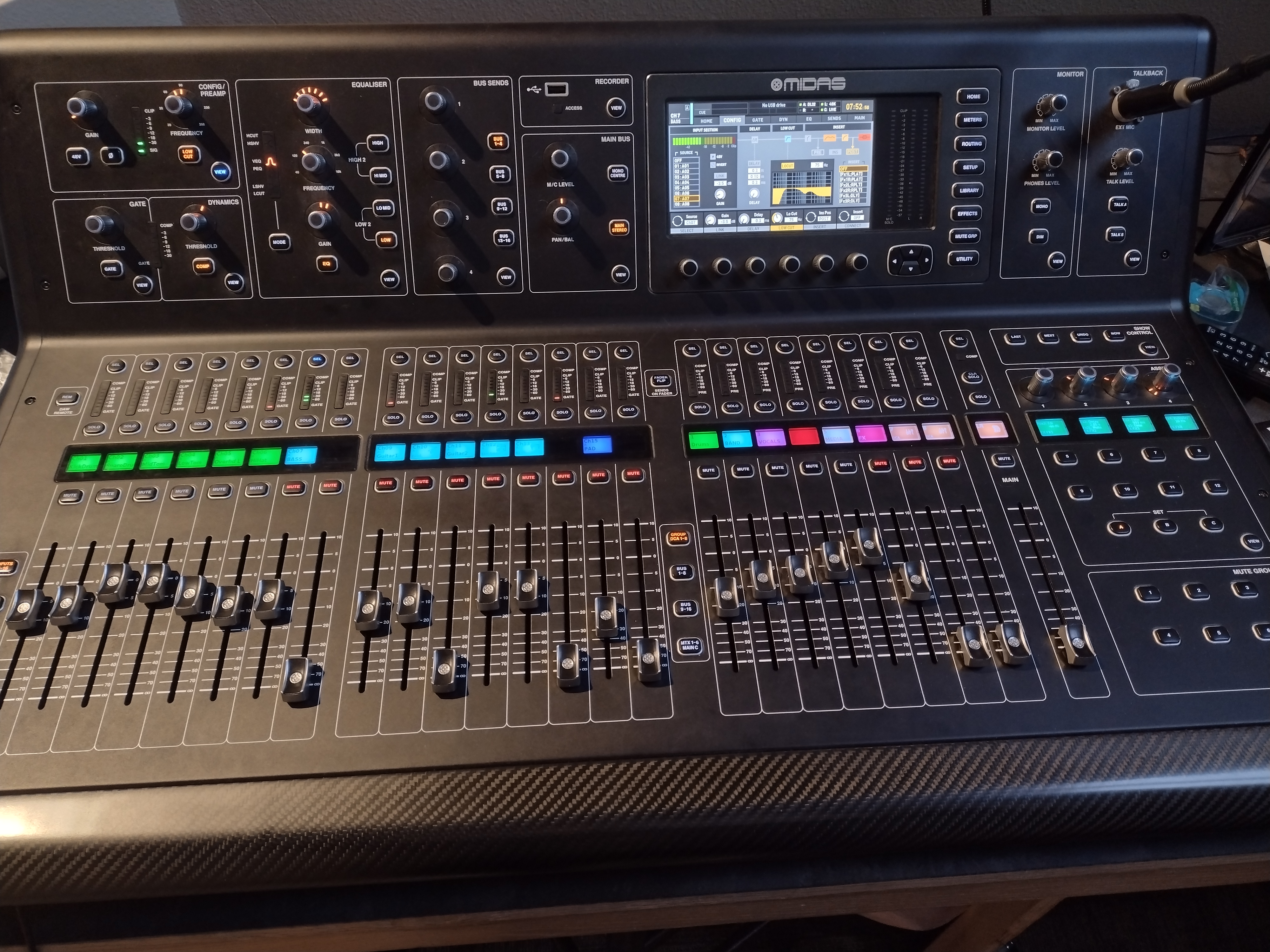
If you can't or don't want to sit at the computer to progress the slides, you could have another person do it. This transforms your solo presentation into a collaborative creative work, which might be a benefit. It also might not. If someone else is pressing through your slides, they have to know when to progress to the next slide.
One way to accomplish this would be to rehearse together, but then you're making quite the claim on someone else's time and expecting them to perform perfectly. The other person might not be willing or able to do that. I personally rehearse my presentations 10-20 times before I perform them on-stage. By the time I get on stage, I know my lines nearly as well as I know the alphabet. Relying on someone else would foist that responsibility onto them. Admittedly, my fiancee does watch me for most of my rehearsals, so she knows my lines pretty well too. However, she's busy operating the camera, which is already quite a big ask. I can't also saddle her with the slides.
You could have anyone at all manage your slides. A random person from the audience could do it, but they need to be able to tell when they should advance. This is pretty easy when the content is extremely structured or linear. This is what I have seen most pastors do, and it makes sense. The content that they are covering goes in a specific linear order and it is obvious when the slide should change.
If you pick a random person to run your slides and you don't have it be incredibly obvious when to switch the slides, you'll wind up like Mark Dominus in his Conference Presentation Judo talk, where he keeps screaming for the next slide.
Timed Progression
Most presentation software has an option for automatic slide progression on a timer. I think this is kind of crazy, at least for my (current) presentation style. I go burn through slides fast because I don't generally put words on them. I use them for illustration and punchlines. Timing that, for me, would be incredibly difficult.
If you use less slides, ones with lots of words on them, and you find that you are frequently going over time, then this might be a useful tool to force you to move it along.
Clicker Remote
For the above reasons, most conference speakers wind up using some form of clicker remote. This is a wireless device that allows the speaker to change the slides. Most remotes even allow you to move forwards and backwards. Some have laser pointers integrated. Some have extra functionality like the ability to blank the screen or swap displays. There has been a lot of innovation in this space. You gain all the personal control of pressing the spacebar, but you don't have to stay glued to the podium!
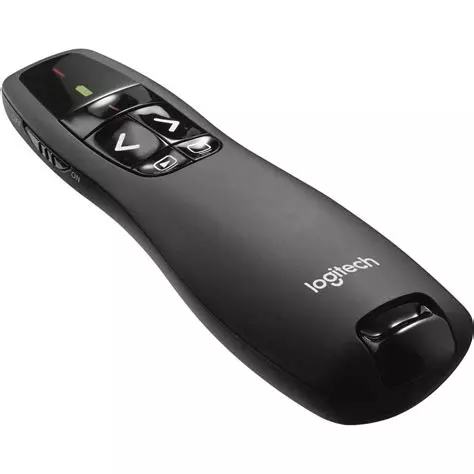
There are a few pitfalls with these things though.
You have a laser pointer, which means that you might wind up using a laser pointer. I think that using a laser reflects poorly on the speaker. You could instead have planned for an giant red arrow to appear on the screen instead, but you either didn't care enough or didn't know your content well enough to do that, so you improvised with the laser. I have used remotes with the laser before, but I refuse to use the laser itself for exactly this reason. I think it becomes a crutch that holds you back.
Additionally, a lot of these clicker remotes use a standalone 2.4Ghz dongle instead of Bluetooth. This is nice for compatibility and portability, but it potentially leaves you wide open to mosuejack style attacks. These unencrypted, unauthenticated wireless dongles will frequently just accept whatever input they receive. A hacker with an SDR can effectively have a keyboard and mouse plugged into your device. Maybe you're speaking at oil industry conferences and don't have to worry about that, but I give presentations to rooms full of nerds and can't take that liability.
Bluetooth is a superior technology. It requires pairing, which is a double-edged sword. The communications are encrypted and authenticated, but now you have to go through the pairing process. If you're presenting from a computer that doesn't belong to you, you have to hope that bluetooth is going to work. Bluetooth clicker remotes do exist, though they are a bit rare. I've seen people happily use wireless bluetooth mice, and even once a Wiimote. Sadly, I am not cool enough to pull of a Wiimote. My swag points are all spent on a very specific type of shirt.
I have a bluetooth clicker, the Satechi R1. It is well-made, looks sleek, charges with USB-C, has a long battery life, and generally works pretty well. I've used it successfully for several presentations.
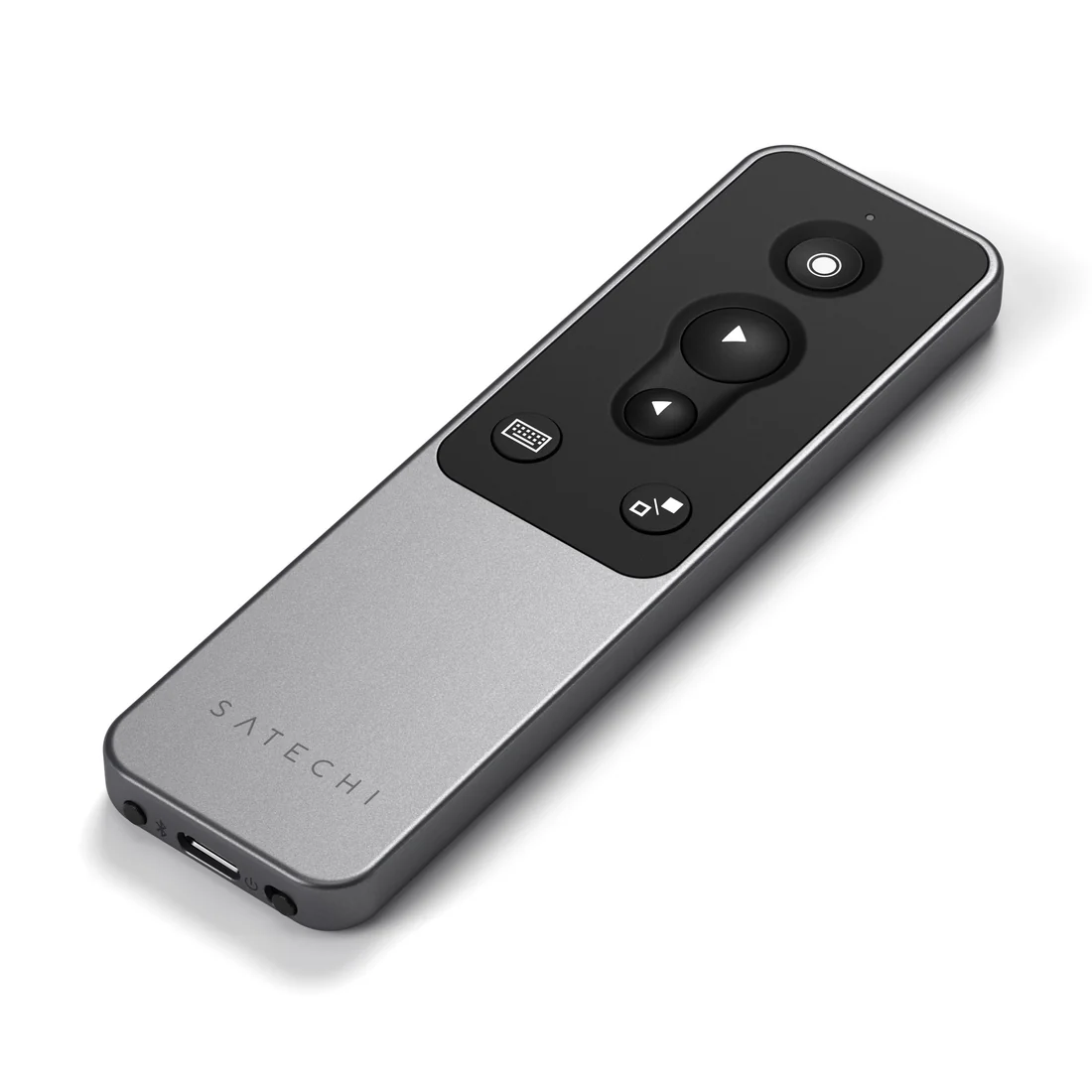
I have two issues with the R1. First, it monopolizes an entire hand. I can't use that hand for anything else (like speaking Italian). This isn't something that could really be alleviated by a different remote, since you have to hold a remote to be able to click it. The second issue is specific to the R1, and it seems like a really obvious design oversight. The remote will, after a couple minutes of inactivity, go to sleep. When I then go to press the button to advance a slide, it wakes up but doesn't send the button press. Instead I have to click again to send the press. This might sound like a really minor issue, but it caused me to stumble over my opening lines in my two most recent talks. I'm not sure that the audience really cared, but I cared.
I needed (well, wanted) a new solution.
TikTok Scrolling Ring
What?
You might be familiar with the popular telephone application "TikTok". It is a social media application that operates entirely on short-form videos. Like most social media though, most users do not upload to TikTok, they only view content on the platform. The demands that the application places on this majority of the users is:
- Hold the phone (you were already doing this)
- Flick your thumb to change videos
You have to move your thumb a minimum of 1/4" (roughly 6mm) across a smooth piece of glass to get the next dopamine hit. For some reason, this is too much of a demand on the user and a whole category of products called "TikTok Rings" has sprung up. The marketing for them is hilarious:
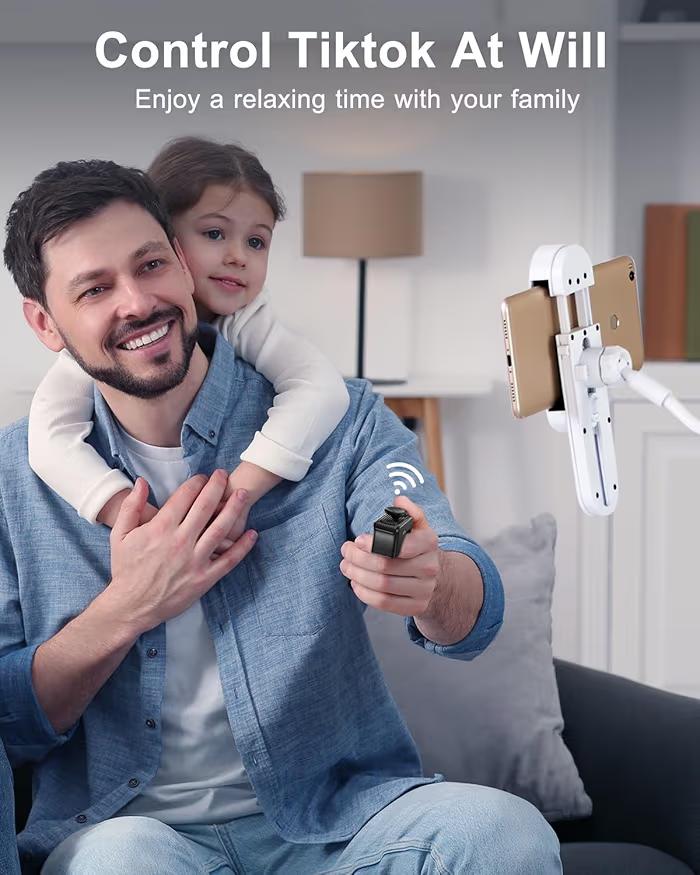
Just for those keeping score at home, this ad is saying:
- You didn't control TikTok "at will" before
- You either didn't enjoy it or it wasn't relaxing
- Watching TikToks with your young child is a normal regular thing
- People watch TikToks (videos exclusively recorded and distributed vertically) in a horizontal format
My TikTok Ring
Since these rings connect to your cellphone and people aren't generally willing to plug a dongle into their device that already has a bunch of wireless radios, they all exclusively use blueooth. They also don't take a whole hand to hold, you can just put them on one finger. This seems like the perfect solution to my above problem!
After talking about this ad nauseum, my fiancee bought me the D01 Pro for Christmas. I unwarpped it with excitement in my heart and eagerly connected it to my laptop. The bluetooth manager application on Xubuntu even recognized it as a "keyboard" device, which was re-assuring. Then I pushed the buttons and...nothing happened. I couldn't get any behavior on my desktop and nothing whatsoever out of xev when I pushed buttons.
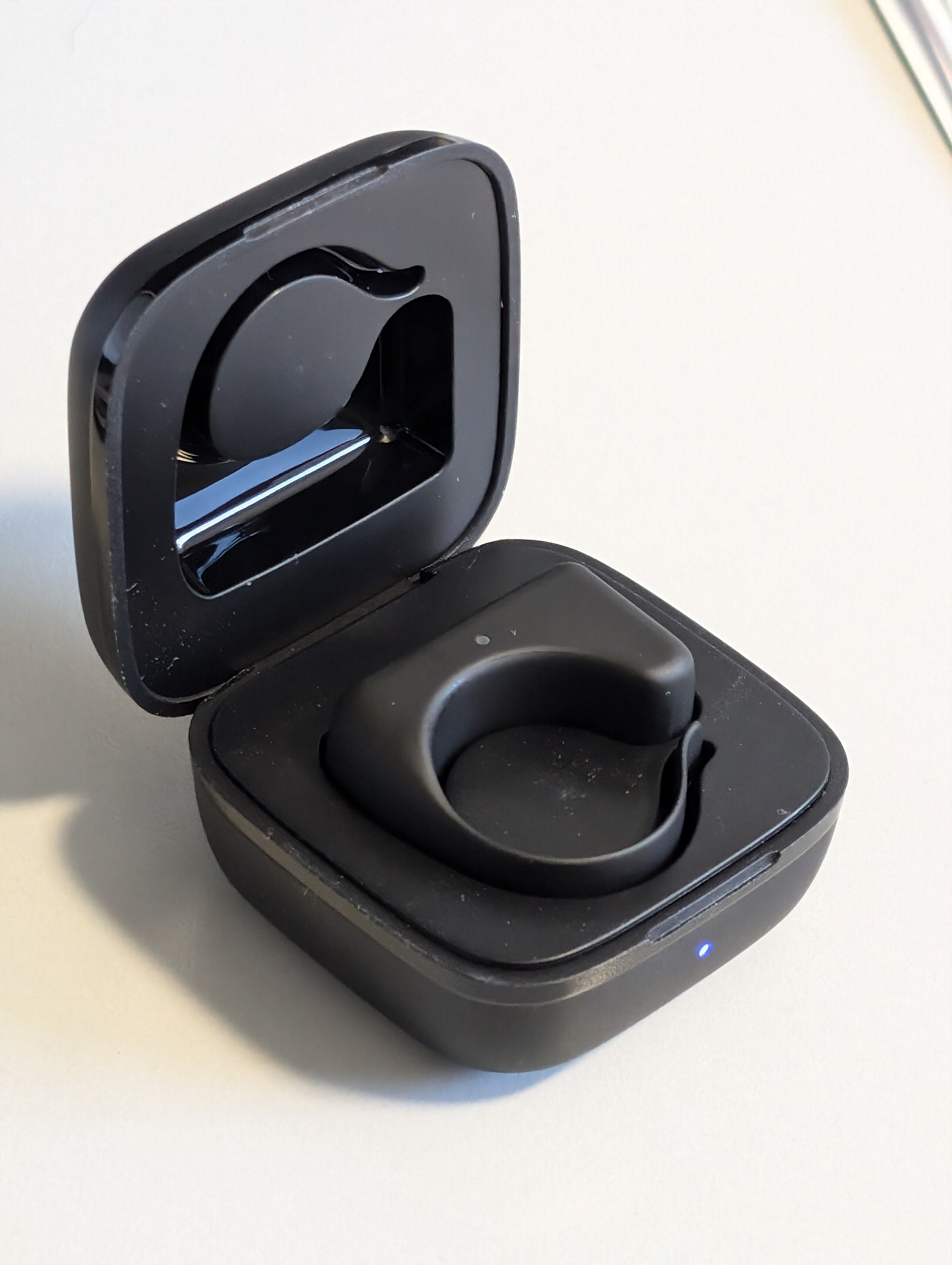
I didn't know why it was doing nothing at all since I've spent very little time delving into the depths of Linux's support for human interface devices (generic term for keyboards and mice). I feared I might have to go through the work of writing a custom kernel driver for this device. This was scary because I don't know C and I've never written a driver before. So I did what any rational human would do: I put the ring in a drawer and thought "I'll get to that someday". We all know how that goes.
Months passed. My hair grew. I gave a couple presentations. I got engaged. I started trying out this "fediverse" thing to see if I like it. I'm not convinced that I do like it. On Mastodon, I saw this toot from Elizabeth offering to help people dive into low-level systems that they are unfamiliar with. It was too good of an opportunity to pass up. I replied with a description of my situation, and she pointed me towards remapping the inputs.
I saw this reply and thought to myself "yeah except it's not sending my computer any inputs so how am I supposed to remap something that doesn't exist", but before typing that (rude) response, I figured I'd just try again and gather at least some information to ask for help better. I fished the ring out of a drawer, charged it, and reconnected it to my computer. The buttons started doing things. When I pushed one arrow button, my mouse would teleport to the middle of my screen, a bit below the center line, and then drag upwards. The opposite happened when I clicked the other arrow. When I clicked the center circle button, my mouse teleported to the center of the screen and then clicked. None of this happened the first time that I tried to connect the device.
I read the instructions again and found that I could switch the ring from TikTok mode to Spotify mode. I did this and I was able to get distinct keypresses showing up in xev. Then I was able to rebind them with Input Remapper and use the ring to change slides. Amazing.
How To Use A D01 Pro On Linux To Change Slides
Take the device out and place it into pairing mode by holding the center button down for about 5 seconds. The indicator LED on the ring will flash blue and red quickly. Connect to the device from your computer using your regular bluetooth manager that you always use for all bluetooth.
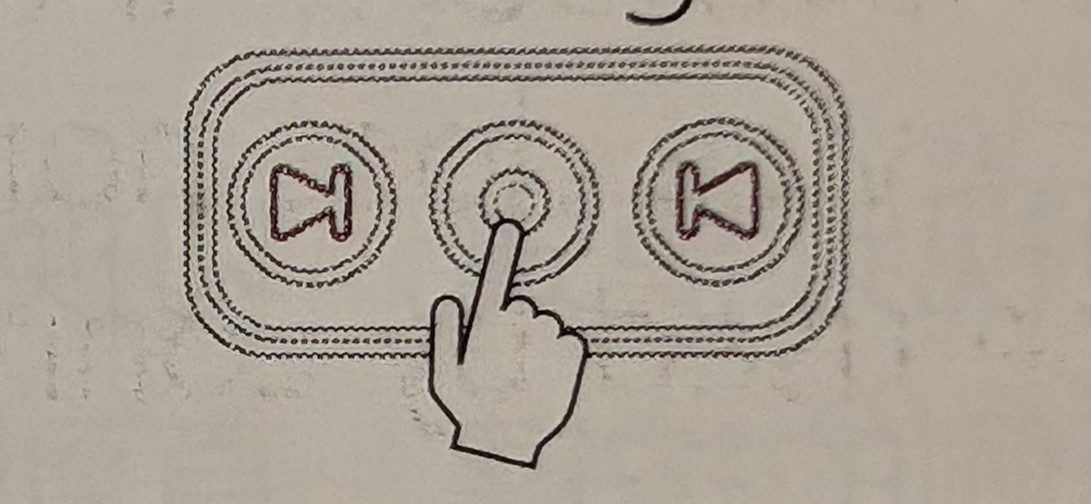
Switch the device from TikTok mode to Spotify mode by holding down both arrow buttons together (you don't have to use two hands). You won't notice anything happen on your computer's end with this.
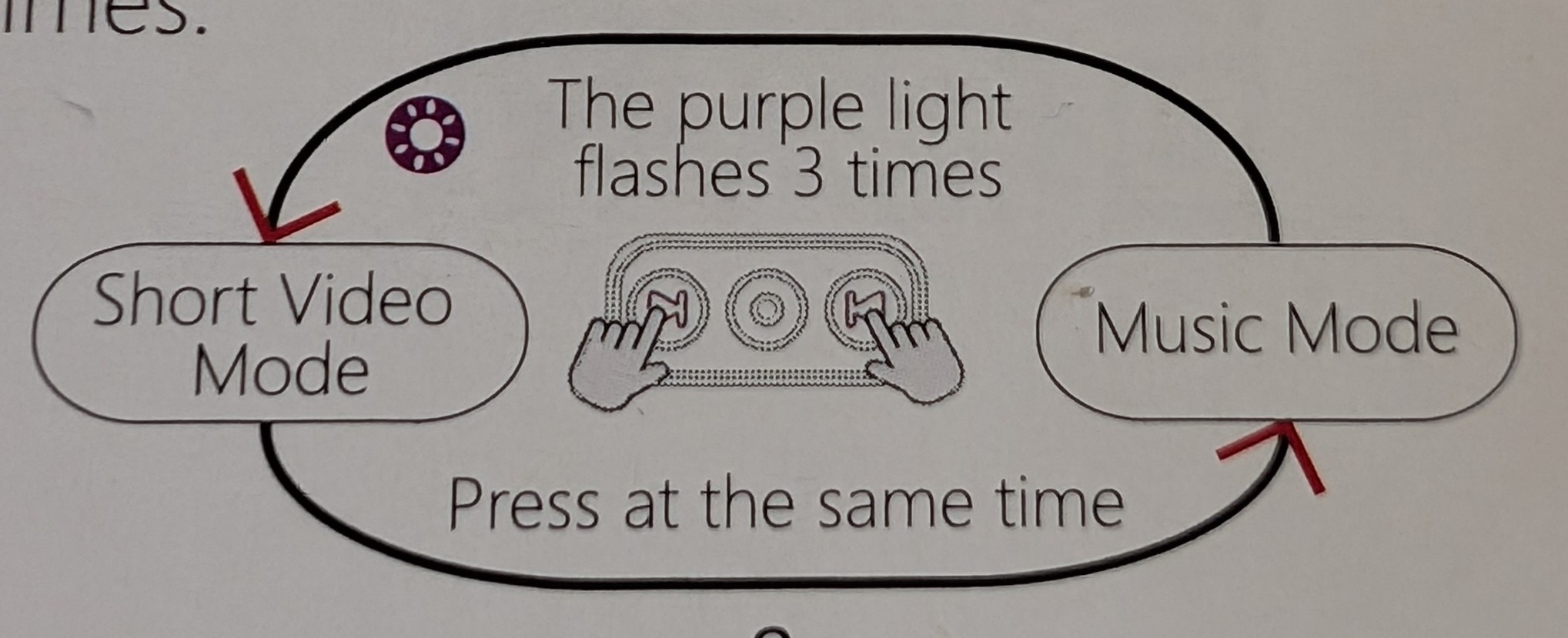
You should now be able to use the remote to control any music player that supports media keys. It works fine with Feishin on Xubuntu 24.04. To rebind the keys, you need Input Remapper. On Ubuntu systems, you can just run:
sudo apt install input-remapper-gtk
Which will get the GUI, the daemon, and the needed Python library. Then just open the "Input Remapper" application from your launcher. Select the option for D01 Pro UNKNOWN. Click the New Preset button, you can change the name if you want.
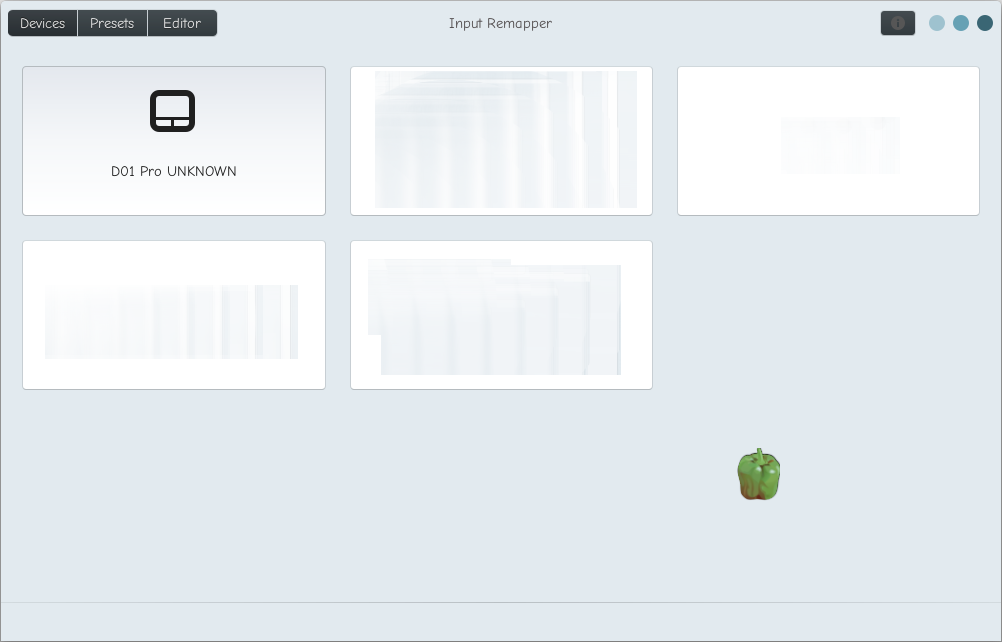
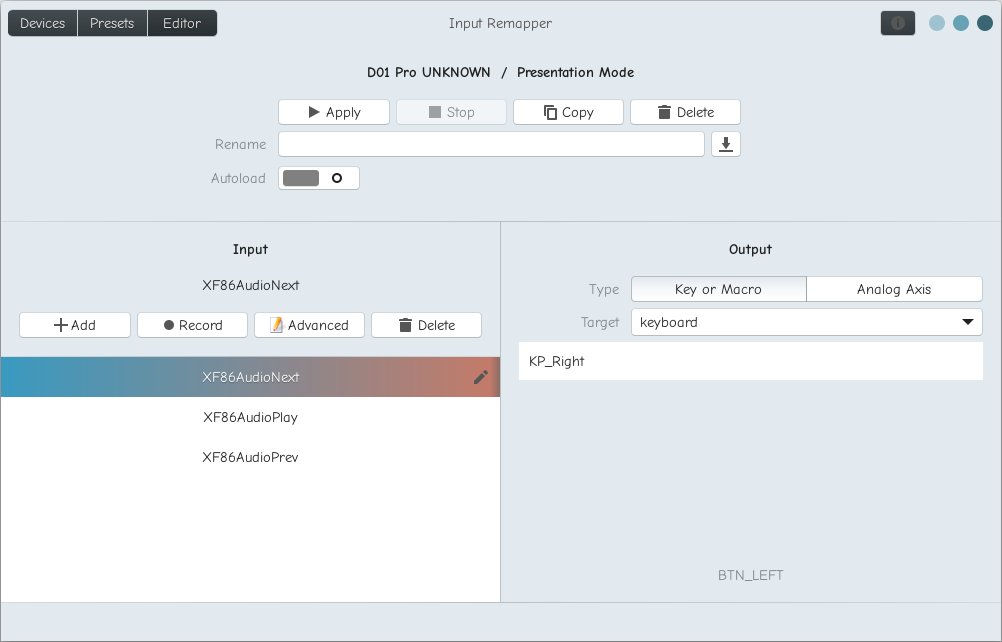
From here the usage is pretty self-evident. You Add and then Record a button from the device in the bottom left pane. Then you set the keypress that you want it mapped to in the bottom right pane. The remote actually has 9 button presses that you can trigger. There's the three physical buttons, and each one sends a different keypress event depending on if you single click, double click, or hold it down.
Gotchas
A word to the wise: double-tapping the down arrow (the one on the same side as the ring opening) sends the KEY_POWER event, which turns off your computer.
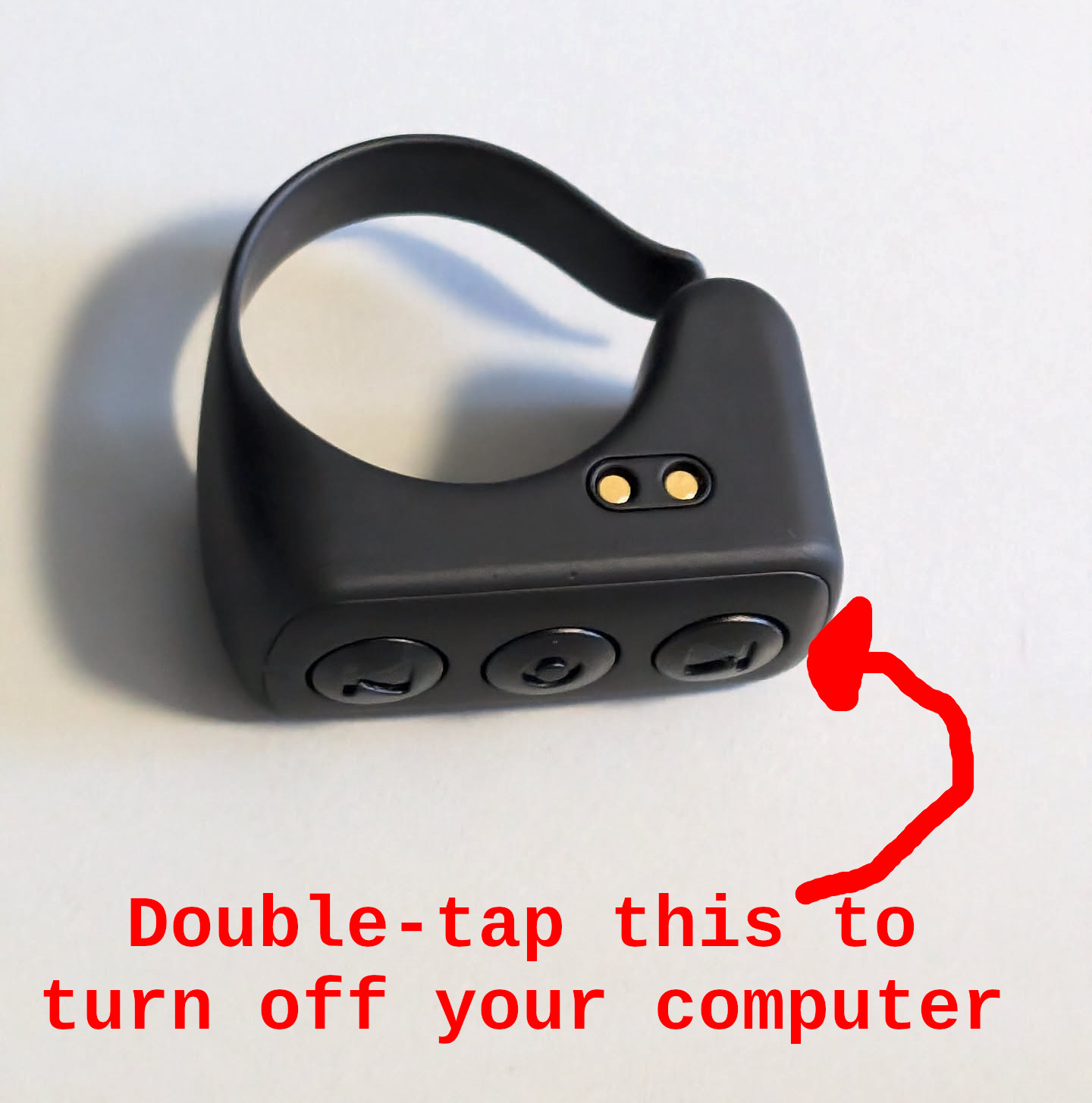
Since you can't record this button without shutting down your computer, you have to first disable the power button by adding this line to your /etc/systemd/logind.conf file:
HandlePowerKey=ignore
And then run a systemctl restart systemd-logind. You might also have to prevent your DE from grabbing the input and shutting down your computer. You could also just leave it and live dangerously. I set the "down" button to be the left arrow key on my system. I normally progress through my slides forward (right arrow), so I'm less likely to accidentally double-click the back button.
Another head's up for you: the remote doesn't turn on automatically when you take it out of the case. You have to hold down the middle button for a second.
Lastly, sometimes when I connect it to my computer, it doesn't show up as "D01 Pro Unknown", but instead as "D01 Pro". When this happens, I get the old behavior that I had the first time that I took it out of the box. Pressing the buttons results in nothing happening. I think that this is some race condition somewhere but I'm not entirely sure where. The only solution that I have found to this is rebooting my whole entire computer. If I ever figure out why this happens, I'll come back here and update this blogpost.